
Introduction
Bluetooth Not Connecting to a Second Device
Bluetooth accessories such as wireless headphones, earbuds, speakers, and keyboards sometimes fail to connect to a second device. This can happen because the accessory does not support multipoint connectivity, is still connected to the first device, or has outdated pairing information. Follow these troubleshooting steps to fix the problem.
Check Multipoint Connection Support
First, check whether your Bluetooth accessory supports multipoint connectivity. This feature allows compatible headphones or other accessories to stay connected to two devices simultaneously, such as a phone and a laptop.
Not every Bluetooth accessory supports multipoint. Some devices can remember several paired devices but connect to only one at a time.
Check the product specifications or user manual to confirm whether multipoint is supported. If it is available, you may also need to enable it through the manufacturer’s companion app or device settings.
Disconnect the First Device
Your accessory may be automatically connecting to the first phone, computer, or tablet and preventing the second device from connecting.
Try these steps:
- Open Bluetooth settings on the first device.
- Find your connected headphones, earbuds, or speaker.
- Select Disconnect or temporarily turn off Bluetooth on the first device.
- Open Bluetooth settings on the second device.
- Select your accessory from the available devices list.
If the second device connects successfully, the accessory may support only one active connection at a time. You can reconnect the first device afterward if multipoint is supported.
Put the Accessory Into Pairing Mode
If your accessory does not appear on the second device, it may not be in pairing mode. Simply turning it on does not always make it discoverable.
Follow these general steps:
- Turn on your Bluetooth accessory.
- Follow the manufacturer’s instructions to activate pairing mode. This may involve holding the Bluetooth or power button for a few seconds.
- Look for a flashing indicator light or an audio prompt confirming pairing mode.
- Open Bluetooth settings on the second device.
- Wait for the accessory’s name to appear, then select it to connect.
For wireless earbuds, pairing mode may require placing the earbuds in their charging case and holding a button on the case. The exact procedure depends on the model.
Remove Old Pairings and Reconnect
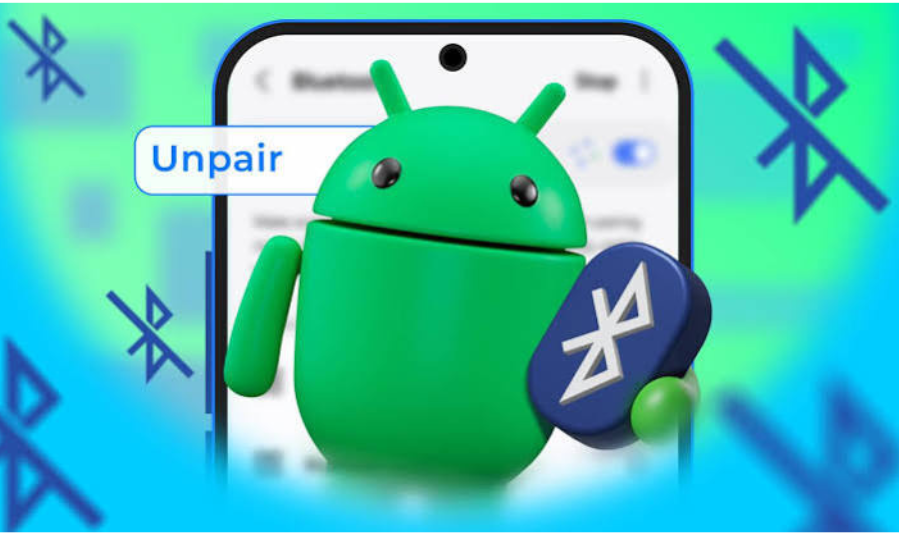
Saved Bluetooth pairing information can sometimes cause connection problems. Removing the old connection and pairing again may resolve the issue.
On the device you want to connect:
- Open Bluetooth settings.
- Find the accessory in the list of saved or paired devices.
- Select the settings icon or information button beside its name.
- Choose Forget, Unpair, or Remove Device.
- If necessary, remove the same accessory from the first device’s saved Bluetooth list.
- Restart the accessory and put it into pairing mode.
- Search for available Bluetooth devices and pair again.
If the problem continues, restart both devices and check for software or firmware updates. Avoid performing a factory reset until you have checked the manufacturer’s instructions, as the reset procedure varies by model.
For additional guidance, see the official Samsung Bluetooth troubleshooting guide and Sony multipoint connection instructions.
Quick tip: If your Bluetooth accessory connects to the first device but not the second, temporarily disconnecting the first device is a useful first test. If it still fails, verify multipoint support and repeat the pairing process.
Bluetooth Not Working in Safe Mode
Bluetooth may stop working when a computer or phone starts in Safe Mode. This is because Safe Mode loads only essential system components and may disable certain drivers, services, or third-party applications. As a result, Bluetooth functionality may be limited even when the hardware is working correctly.
If Bluetooth works normally but fails in Safe Mode, follow these troubleshooting steps to identify the cause.
Check Whether Third-Party Apps Are Causing Conflicts
Third-party applications can sometimes interfere with Bluetooth connectivity by changing device settings, managing wireless connections, or installing additional drivers. Safe Mode helps troubleshoot certain software conflicts by starting the system with fewer applications and services.
However, Bluetooth may also be unavailable in Safe Mode because the required driver or service is not loaded. Therefore, Bluetooth failing in Safe Mode does not automatically mean a third-party app is causing the problem.
To investigate, check whether Bluetooth works in normal mode. If it does, review recently installed applications and any software that manages Bluetooth devices. Temporarily uninstall or disable suspicious software only when necessary, and avoid removing essential system components.
Test Bluetooth in Normal Mode
Restart your device and allow it to start normally. Then turn on Bluetooth and try connecting your headphones, keyboard, mouse, or another accessory.
On Windows 11, open Settings > Bluetooth & devices and make sure Bluetooth is enabled. Check whether the accessory appears in the device list and connects successfully.
If Bluetooth works in normal mode but not in Safe Mode, the hardware is more likely to be functioning correctly. The difference may be related to drivers, services, or the limitations of Safe Mode.
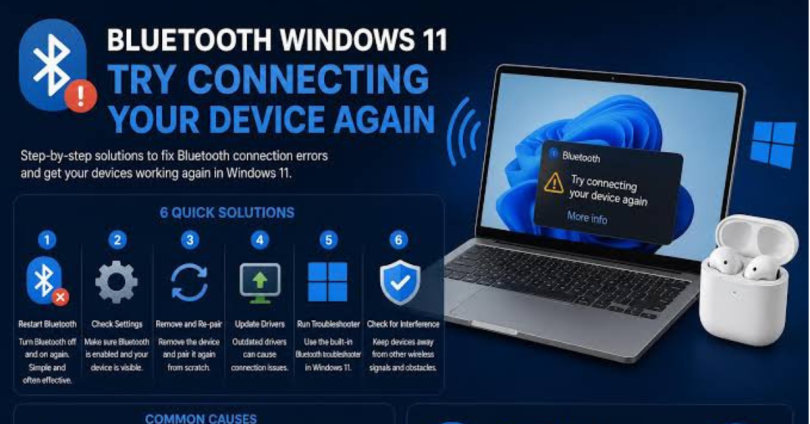
If Bluetooth also fails in normal mode, try turning Bluetooth off and on, restarting the accessory, and removing and pairing the device again. You can also run the Windows Bluetooth troubleshooter to identify common connection problems.
Review Recently Installed Software

If Bluetooth stopped working after installing an application, driver, or system update, the recent change may be related to the issue.
Follow these steps:
- Open your device’s installed applications or software settings.
- Review recently installed programs and Bluetooth-related utilities.
- Check whether a Bluetooth driver or system update was installed shortly before the problem began.
- If a specific application appears responsible, update it or uninstall it if it is not essential.
- Restart the device normally and test Bluetooth again.
On Windows, you can open Device Manager, expand the Bluetooth section, and check the adapter’s status. If the problem began after a driver update, consider using the driver’s Roll Back Driver option when available. Create a restore point or backup before making significant system changes.
Avoid uninstalling several programs or drivers at once, as this can make it harder to identify the actual cause.
Follow Device-Specific Troubleshooting Instructions
Safe Mode behaves differently across operating systems, so the correct troubleshooting method depends on your device.
For Windows computers: Check whether the Bluetooth adapter appears in Device Manager. If Bluetooth is unavailable only in Safe Mode, test it again in normal mode before changing drivers. Install compatible drivers from Windows Update or your computer manufacturer’s official support website if Bluetooth also fails during normal startup.
For Android phones: Safe Mode generally disables downloaded applications to help identify software problems. Bluetooth behavior can vary by phone model and software version. Test Bluetooth after restarting normally, and check your manufacturer’s support instructions if the issue continues.
For other devices: Consult the manufacturer’s official documentation to determine whether Bluetooth is expected to function in Safe Mode and whether additional diagnostic steps are available.
For Windows-specific help, see Microsoft’s official Bluetooth troubleshooting guide.
Final Tip
If Bluetooth does not work in Safe Mode but works normally after restarting, you may not need to repair anything. Safe Mode can limit Bluetooth functionality by design. If Bluetooth fails in both modes, investigate the adapter, drivers, saved pairings, and recent software changes to identify the underlying issue.
Bluetooth Not Connecting Because of Permissions
Bluetooth connection problems can occur when an app does not have permission to discover nearby devices, communicate with a paired accessory, or access the features required for setup. This is especially common with smartwatch apps, wireless earbuds apps, fitness trackers, and other Bluetooth companion applications.
If your accessory connects through your phone’s Bluetooth settings but does not work correctly in its companion app, reviewing the app’s permissions is a useful troubleshooting step.
Review Bluetooth Permissions in the App
Some apps need explicit Bluetooth permission to discover nearby accessories or communicate with connected devices. If you previously denied this permission, the app may be unable to complete the connection process.
On an iPhone, follow these steps:
- Open Settings.
- Select Privacy & Security.
- Tap Bluetooth.
- Find the app you want to use.
- Enable Bluetooth access for that app.
On Android, open Settings > Apps, select the relevant application, and look for its Permissions section. Allow the necessary Bluetooth or nearby-device permissions if they are listed.
The exact menu names may vary by phone manufacturer and operating system version. After changing the settings, reopen the app and try connecting your accessory again.
Check Nearby Devices Permissions on Android Where Applicable
Android 12 and later versions use a Nearby devices permission for apps that need to discover or connect to Bluetooth accessories. Without the required permission, an app may be unable to find a smartwatch, wireless headset, fitness tracker, or other nearby device.
To check this permission:
- Open your phone’s Settings.
- Select Apps and choose the relevant companion app.
- Tap Permissions.
- Select Nearby devices, if available.
- Allow the permission if the app needs it.
- Reopen the app and attempt to connect again.
You can also check whether Bluetooth is enabled in your phone’s main settings. Grant only the permissions needed for the app’s intended functions.
Android’s official documentation explains the requirements for discovering nearby Bluetooth devices and connecting to paired accessories. <Cite refs={[“turn975238search3″,”turn975238search11”]}/>
Allow Necessary Location Permissions on Older Android Versions When Required
On older Android versions, some applications need location permission to scan for nearby Bluetooth devices. This is because Bluetooth scanning could potentially be used to infer a user’s physical location.
If your phone runs Android 11 or an earlier version and the companion app cannot find your accessory, check whether it requests location access.
Follow these steps:
- Open Settings > Apps.
- Select the companion app.
- Tap Permissions.
- Choose Location, if the app requires it.
- Grant the appropriate permission and enable Location services if the app’s scanning function requires them.
- Return to the companion app and scan for the device again.
On Android 12 and later, Bluetooth scanning can generally use Nearby devices permission without location access when the app does not use Bluetooth results to derive physical location. Therefore, do not enable location unnecessarily if the app does not require it. <Cite refs={[“turn975238search3″,”turn975238search6”]}/>
Confirm That the Companion App Has the Access It Needs
Some Bluetooth accessories rely on a companion app for initial setup, firmware updates, health data synchronization, or advanced controls. Even if the accessory appears in the phone’s Bluetooth list, the app may not work correctly when a required permission is missing.
To troubleshoot the problem:
- Check the app’s permissions: Confirm that Bluetooth, Nearby devices, or other required permissions are enabled.
- Update the companion app: Install the latest available version from the official app store.
- Restart the app: Close it completely, reopen it, and try connecting again.
- Check the accessory’s connection status: Follow the manufacturer’s instructions to ensure the accessory is paired and ready to use.
- Reconnect if necessary: If the app still cannot find the accessory, follow its official instructions to remove the existing connection and pair again.
On an iPhone, you can review app access under Settings > Privacy & Security. On Android, check the app’s permissions under Settings > Apps. Menu names may differ between devices. <Cite refs={[“turn975238search0″,”turn975238search8″,”turn975238search3”]}/>
Final Tip
If Bluetooth is enabled but a companion app cannot find your accessory, check the app’s permissions before resetting your device. On newer Android phones, start with Nearby devices permission; on older Android versions, location permission may also be necessary. On iPhones, review Bluetooth access under Privacy & Security.
If the problem continues, update the companion app, restart your phone, and consult the accessory manufacturer’s official troubleshooting instructions.
Bluetooth Connection Problems After Installing an App
Bluetooth connection problems can sometimes begin after installing a new application or changing system settings. Some apps manage Bluetooth accessories, install drivers, or request permissions that affect how devices connect. If Bluetooth stops working after installing an app, reviewing recent changes can help identify the cause.
Review Recently Changed Settings
An application may change certain device settings during installation or setup. These changes can sometimes affect Bluetooth discovery, permissions, or connection behavior.
Start by checking whether Bluetooth is enabled and whether your accessory appears in the list of available or paired devices.
- Check Bluetooth settings: Make sure Bluetooth is turned on and your accessory is within range.
- Review app permissions: Confirm that the relevant app has permission to access Bluetooth or nearby devices where required.
- Check recent changes: Think about whether the problem began immediately after installing an app, updating software, or changing a setting.
- Restart your device: A restart can help resolve temporary software conflicts.
On Windows, open Settings > Bluetooth & devices. On an iPhone, review app access under Settings > Privacy & Security > Bluetooth. On Android, check the app’s permissions under Settings > Apps.
Check Whether the App Controls the Accessory
Some Bluetooth accessories depend on a dedicated application for setup, configuration, or advanced features. Smartwatches, wireless earbuds, fitness trackers, and other connected devices may require their official companion apps.
If the accessory connects through your phone’s Bluetooth settings but does not work inside the app, check whether the application has the necessary permissions and whether the accessory is supported.
Try these steps:
- Open the app and check its connection status.
- Confirm that the accessory is switched on and ready to connect.
- Check whether the app requires you to pair the accessory through its own setup process.
- Close and reopen the app.
- If the connection still fails, restart both the accessory and your phone or computer.
Avoid pairing the accessory through multiple apps unless the manufacturer recommends it. Some devices require a specific setup sequence to enable all their features.
Update or Reinstall the Official Companion App
An outdated or damaged application may cause connection problems, particularly if the issue began after an app update or installation.
First, check the official app store for an available update. Developers may release updates to fix compatibility problems, improve Bluetooth connectivity, or support newer operating system versions.
If updating does not help, consider reinstalling the app:
- Check whether the app stores important settings or data that need to be backed up.
- Uninstall the application.
- Restart your device if necessary.
- Download the app again from the official app store or the accessory manufacturer’s website.
- Open the app, grant the permissions it genuinely needs, and follow the setup instructions.
Before reinstalling, confirm that you are using the correct companion app for your accessory model. If the issue affects Bluetooth across several unrelated apps, investigate the operating system and Bluetooth driver instead of assuming that one application is responsible.
Remove Unnecessary Permissions or Conflicting Software
Some applications request permissions that are not essential to their main functions. Reviewing these permissions can help protect your privacy and identify potential configuration issues.
Open your device’s app settings and check which permissions the recently installed application has received. Revoke permissions that are unnecessary for its intended purpose, but keep in mind that removing a required Bluetooth or Nearby devices permission may prevent the app from connecting to your accessory.
If you installed a third-party Bluetooth management tool, driver utility, or connection-management application shortly before the problem began, check whether it is compatible with your device. Update or uninstall it if there is a clear reason to suspect a conflict.
On Windows, also check for Bluetooth driver updates through Device Manager or your computer manufacturer’s official support website. Microsoft provides additional guidance in its Bluetooth troubleshooting guide. <Cite refs={[“turn929694search4″,”turn929694search1”]}/>
Avoid removing essential system software or disabling security features without a clear reason. If the problem continues after removing a suspected conflict, restart your device and test Bluetooth again.
Final Tip
If Bluetooth stopped working immediately after installing an app, begin by reviewing recent settings and checking whether the app manages your accessory. Update or reinstall the official companion app if necessary, and remove only unnecessary permissions or software that may be causing a conflict.
If Bluetooth fails across multiple apps and accessories, the problem may be related to the operating system, Bluetooth driver, or hardware rather than the newly installed application.
Bluetooth Not Connecting to a Gaming Controller
A gaming controller may fail to connect to a console, computer, or phone because of a low battery, incorrect pairing mode, compatibility limitations, or outdated firmware. Controllers such as Xbox Wireless Controllers, PlayStation DualSense controllers, and Nintendo Switch Pro Controllers may also use different pairing procedures.
Follow these troubleshooting steps to identify the problem and reconnect your controller.
Check Controller Battery Level
A low battery can prevent a gaming controller from entering pairing mode or maintaining a stable Bluetooth connection. Before troubleshooting further, make sure the controller has enough power.
- Connect the controller to a compatible charging cable or console USB port.
- Allow it to charge for a while.
- Disconnect the cable if you want to test a wireless connection.
- Turn on the controller and check whether its indicator light responds normally.
- Try pairing it with your device again.
If the controller does not charge, try a compatible cable and another USB port. Some USB cables support charging but not data transfer, so use a suitable data cable if you need to pair the controller through USB.
Enable the Correct Pairing Mode
Your gaming controller must be in the correct pairing mode before a console, computer, or phone can discover it. Simply turning on the controller may cause it to reconnect to a previously paired device instead.
The pairing procedure depends on the controller model.
- Xbox controller: Hold the Pair button until the Xbox button begins flashing, then select the controller in your device’s Bluetooth settings if your model supports Bluetooth.
- PlayStation DualSense controller: With the controller off, disconnect any USB cable, then hold the Create button and PS button together until the light bar flashes. Select the controller from the available Bluetooth devices.
- Nintendo Switch Pro Controller: Use the SYNC button to initiate pairing, following the instructions for your console and controller model.
After activating pairing mode, open Bluetooth settings on your computer or phone and select the controller. For detailed instructions, consult the official PlayStation controller support guide or Microsoft’s controller connection guide. <Cite refs={[“turn136363search2″,”turn136363search6”]}/>
Confirm Console, Computer, or Phone Compatibility
Not every gaming controller works with every device. Compatibility depends on the controller model, operating system, connection method, and game.
Before attempting to pair the controller, check the manufacturer’s compatibility information.
- Gaming consoles: Confirm that the controller is designed for your console generation. For example, Nintendo Switch 2 controllers and original Nintendo Switch controllers have model-specific compatibility requirements.
- Windows computers: Many Xbox, PlayStation, and third-party controllers can connect through USB or Bluetooth, but supported features vary.
- Phones and tablets: Check the minimum supported Android or iOS version and whether your games support controller input.
A controller may connect successfully but still fail to work in a particular game because that game does not support the controller or its input features.
If Bluetooth pairing is unsuccessful, try a compatible USB data cable where supported. A wired connection can help determine whether the problem is related to wireless pairing or device compatibility. <Cite refs={[“turn136363search7″,”turn136363search8″,”turn136363search6”]}/>
Remove Old Pairings
A controller may try to reconnect to a previously paired console, computer, or phone. If it is already connected to another device, your new device may not be able to establish a connection.
To resolve this issue:
- Turn off Bluetooth on the previously connected device or disconnect the controller from it.
- Open Bluetooth settings on the device you want to use.
- Find the controller in the saved devices list.
- Select Forget Device, Unpair, or Remove Device if an old pairing is present.
- Put the controller into pairing mode again.
- Select it from the available devices list and complete the pairing process.
Some controllers store multiple device pairings, while others require you to pair them again whenever you switch devices. Follow the manufacturer’s instructions instead of assuming that every controller handles multiple connections in the same way.
If the controller still fails to connect, restart the console, computer, or phone and try pairing again.
Update Controller Firmware Using Official Tools
Outdated controller firmware can sometimes cause connection or compatibility problems. Manufacturers may release updates to improve connectivity, fix bugs, or support newer devices.
Use the manufacturer’s official update method:
- PlayStation DualSense: On a PS5, connect the controller and follow any update prompts. You can also use the official PlayStation Accessories application on a supported Windows PC.
- Nintendo Switch Pro Controller: Open System Settings > Controllers and Sensors > Update Controllers on the console.
- Xbox controller: Check the Xbox Accessories application on a supported console or Windows PC for available controller updates.
Keep the controller charged and follow the on-screen instructions during an update. Do not disconnect the controller or interrupt the update unless the manufacturer’s instructions tell you to do so. <Cite refs={[“turn136363search2″,”turn136363search0″,”turn136363search4”]}/>
Final Tip
If your gaming controller will not connect, first check its battery and pairing mode. Next, confirm compatibility, remove outdated pairings, and install any available firmware updates through official tools.
If the controller still does not connect, test it with another compatible device or use a supported USB connection. This can help determine whether the issue is caused by the controller, the original device, or the wireless connection.
Bluetooth Not Connecting to a Smart Home Device
Smart home devices such as smart lights, plugs, locks, thermostats, cameras, and sensors may use Bluetooth during setup. If your phone cannot discover or connect to a smart home device, the problem may involve incorrect setup requirements, missing app permissions, a weak connection, or an incompatible network.
Follow these troubleshooting steps to connect your smart home device successfully.
Confirm the Device’s Setup Requirements
Before troubleshooting, check the manufacturer’s instructions to understand how your smart home device should connect. Some devices use Bluetooth for initial pairing, while others require Wi-Fi, a hub, or a dedicated smart home app.
Start with these checks:
- Make sure the smart home device is powered on and has sufficient battery power.
- Download the correct companion app from the official app store.
- Enable Bluetooth on your phone if the setup process requires it.
- Check whether the device needs a compatible Wi-Fi network, hub, or additional hardware.
- Follow the setup instructions for your exact device model.
Some smart plugs, lights, cameras, and sensors support Bluetooth-assisted setup but ultimately connect through Wi-Fi. Others use different connection methods, so do not assume that every smart home device connects directly through Bluetooth.
For example, Apple’s smart home setup guidance recommends checking accessory compatibility, Bluetooth settings, and any additional requirements specified in the manufacturer’s manual.
You may also like to read these posts:
Best Toilet Repair Kit: Top Picks for Easy and Reliable Toilet Repairs
Best Drain Snake for Home: Top Picks for Easy and Effective Clog Removal
Notion vs Evernote for Students: Features, Pricing, Pros & Cons, and Which Is Better
Check Whether Bluetooth Is Used Only for Initial Setup
One common source of confusion is that Bluetooth may be used only to configure a smart home device rather than to control it continuously.
For example, some smart plugs use Bluetooth to communicate with your phone during setup and then rely on Wi-Fi for everyday control. Once configuration is complete, the device may no longer appear as a regular Bluetooth accessory in your phone’s settings.
To troubleshoot this situation:
- Open the manufacturer’s companion app and check the device’s connection status.
- Confirm that the device has completed its initial setup.
- Check whether it is connected to the required Wi-Fi network or smart home hub.
- If the device is offline, follow the app’s instructions to reconnect it to the network.
If the app cannot discover the device during initial setup, check whether it is in pairing mode and whether Bluetooth is enabled. If the device was previously configured, investigate its Wi-Fi or hub connection before attempting to pair it again.
Consult the manufacturer’s documentation to confirm which connection method your model uses. <Cite refs={[“turn261838search0″,”turn261838search1”]}/>
Enable Required App Permissions
A smart home app may need permission to discover nearby Bluetooth devices, access the local network, or use location services where required. If these permissions are denied, the app may fail to find the device or complete the setup process.
On Android:
- Open Settings and select Apps.
- Choose the smart home companion app.
- Open Permissions.
- Allow Nearby devices or other Bluetooth-related permissions if requested.
- Allow location access if the app and Android version require it for device discovery.
On iPhone:
- Open Settings.
- Select Privacy & Security.
- Check Bluetooth access for the companion app.
- Review Local Network access if the app needs to discover or communicate with devices on your home network.
The exact permission requirements vary by app, operating system, and accessory. Grant only the access needed for the device’s intended functions.
If permissions are already enabled, close and reopen the app, then try adding the device again. <Cite refs={[“turn261838search3″,”turn261838search2″,”turn261838search5”]}/>
Keep the Phone Close to the Device
Distance and physical interference can prevent a phone from discovering a smart home device during Bluetooth setup. Walls, electronic equipment, and other sources of wireless interference may also affect communication.
For a more reliable connection:
- Place your phone close to the smart home device during setup.
- Keep Bluetooth enabled on your phone.
- Make sure the device is powered on and in the correct pairing mode.
- Temporarily move away from other electronic equipment if the connection remains unstable.
- Wait for the companion app to complete the discovery process before moving away.
For example, Google recommends keeping a phone within approximately 30 cm (12 inches) of certain Nest thermostats during Bluetooth setup. Other products may allow greater distances, so follow the instructions for your particular model. <Cite refs={[“turn261838search1″,”turn261838search10”]}/>
If the device also requires Wi-Fi, check that your phone and smart home device meet the manufacturer’s network requirements. Some products support only 2.4 GHz Wi-Fi, while others support additional network bands.
Follow the Manufacturer’s Connection Instructions
If the previous steps do not work, use the official troubleshooting instructions for your smart home device. Setup procedures can differ significantly between brands and models.
Try the following general steps:
- Restart the device: Power-cycle the smart home accessory according to the manufacturer’s instructions.
- Restart the app: Close and reopen the companion app, then try discovering the device again.
- Update the software: Check for updates to the companion app, phone operating system, and device firmware.
- Check network settings: Confirm that the Wi-Fi network, frequency band, and regional settings meet the device’s requirements.
- Reset only when necessary: If other steps fail, use the manufacturer’s reset procedure and set up the device again.
Avoid factory-resetting a smart lock, alarm, or other security-related device without understanding the consequences. A reset may remove saved settings or require you to configure access again.
For brand-specific help, consult the official Google Home and Nest pairing guide, TP-Link Tapo Bluetooth setup guide, or Xiaomi Home connection troubleshooting guide. <Cite refs={[“turn261838search4″,”turn261838search0″,”turn261838search3”]}/>
Final Tip
If your smart home device will not connect, first confirm its setup requirements and determine whether Bluetooth is used for initial pairing or ongoing control. Then review app permissions, move your phone closer, and follow the manufacturer’s instructions.
If the device still cannot be discovered, check its Wi-Fi or hub connection and look for model-specific troubleshooting steps before performing a factory reset.
FAQS:
Why does Bluetooth keep asking me to pair again?
Bluetooth may repeatedly request pairing because the saved connection information is corrupted, the accessory has been reset, or it is connecting to another device. Try removing the saved pairing from both devices and pairing them again.
Can battery saver affect Bluetooth connections?
Yes, certain battery-saving settings may restrict background activity or affect connected apps and accessories. Charge your device, temporarily disable battery saver, and check whether the Bluetooth connection becomes more stable.
Why does my Bluetooth accessory work with one phone but not another?
The problem may be caused by device compatibility, saved pairing information, software versions, or the accessory’s connection limit. Make sure the accessory supports the second phone and is not already connected to another device.
Can an app prevent Bluetooth from connecting?
Yes, an app may have missing permissions, outdated software, or compatibility issues that prevent it from communicating properly with a Bluetooth accessory. Check the app’s permissions, update it, and follow the accessory manufacturer’s setup instructions.
How do I know if my Bluetooth hardware has failed?
If Bluetooth disappears from system settings, the adapter is not detected, or multiple compatible devices fail to connect, there may be a hardware or driver problem. Update the appropriate software and test another accessory. If the problem persists, contact the device manufacturer or a qualified technician.
Conclusion
Knowing how to fix Bluetooth not connecting can help you solve common pairing and connection problems on Windows, Android, and iPhone. Start by checking Bluetooth settings, restarting your devices, enabling pairing mode, and reconnecting your accessory. If the problem continues, update your drivers or software, check compatibility, and try the troubleshooting steps for your specific device. With these simple solutions, you can often restore a stable Bluetooth connection without professional help.