
Introduction
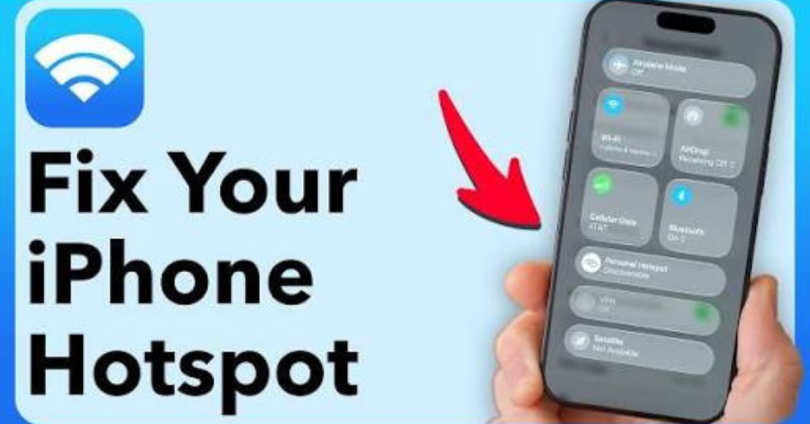
The Personal Hotspot feature on an iPhone allows you to share your mobile data connection with laptops, tablets, and other smartphones. It is useful when Wi-Fi is unavailable, especially while travelling, working remotely, or studying online. However, sometimes the iPhone hotspot does not appear in the Wi-Fi list, connected devices cannot access the internet, or the connection disconnects repeatedly.
These problems can happen because of disabled cellular data, incorrect hotspot settings, weak network signals, carrier restrictions, outdated software, or wireless connection issues.
If you want to learn how to fix iPhone hotspot not working, this comprehensive guide covers common problems and advanced troubleshooting methods. Whether you are connecting an iPhone to Windows, Mac, Android, or another device, the following solutions can help you identify and resolve the issue.
Why Is My iPhone Hotspot Not Working?
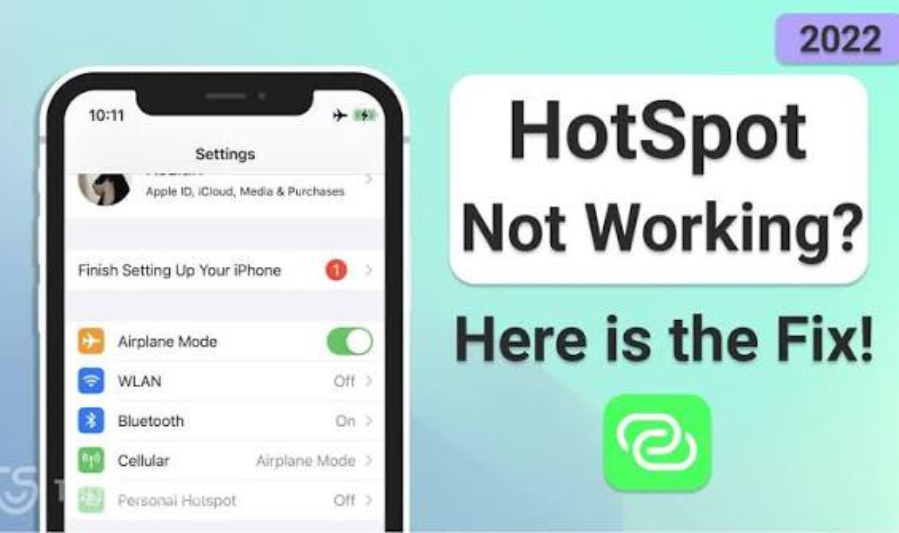
Before trying different solutions, it is important to understand the possible causes of Personal Hotspot problems.
Cellular Data Is Turned Off
Personal Hotspot normally shares your iPhone’s cellular data connection. If cellular data is disabled or unavailable, connected devices may not receive internet access.
Personal Hotspot Settings Are Incorrect
The Allow Others to Join option must be enabled for other devices to connect through a regular Wi-Fi hotspot connection.
Your Mobile Plan Does Not Support Hotspot
Some carriers require a compatible mobile plan for Personal Hotspot. Account restrictions or carrier settings can also prevent the feature from working.
Weak Cellular or Wi-Fi Signals
Poor cellular coverage can make the shared internet slow or unavailable. A weak Wi-Fi signal between the iPhone and another device can also cause connection problems.
Outdated iOS or Device Software
Software bugs or outdated network drivers on a Windows laptop may interfere with hotspot connectivity.
Incorrect Network Settings
Saved Wi-Fi information, network configuration problems, or incompatible wireless settings may prevent another device from connecting successfully.
How to Identify the iPhone Hotspot Problem
Identifying the exact problem helps you avoid unnecessary troubleshooting.
iPhone Hotspot Is Missing from Settings
If Personal Hotspot does not appear in Settings, check Cellular Data and confirm that your mobile carrier supports the feature.
Other Devices Cannot Find Your iPhone Hotspot
If your iPhone hotspot does not appear in the Wi-Fi list, check Allow Others to Join, keep the Personal Hotspot screen open while connecting, and restart both devices.
iPhone Hotspot Connects but Has No Internet
If a laptop or phone connects successfully but cannot browse websites, test cellular internet directly on your iPhone. The issue may be related to your data plan, mobile signal, or carrier service.
iPhone Hotspot Disconnects Frequently
Repeated disconnections may be caused by weak signals, device settings, software problems, or the connecting device’s power-saving behavior.
Hotspot Password Is Not Working
A password error may occur because the connecting device has saved an old password or the current password was entered incorrectly.
How to Fix iPhone Hotspot Not Working
Try these solutions in order, starting with the simplest methods.
1. Turn On Personal Hotspot
First, make sure your iPhone is allowing other devices to connect.
- Open Settings.
- Tap Personal Hotspot. On some versions, you may find it under Settings > Cellular.
- Enable Allow Others to Join.
- Review the displayed Wi-Fi password.
- Keep the Personal Hotspot screen open while another device searches for the network.
Next, open Wi-Fi settings on your laptop or phone, select your iPhone’s name, and enter the password.
If the hotspot option is missing entirely, continue to the carrier and cellular-data checks below.
2. Enable Cellular Data
Personal Hotspot normally relies on cellular internet rather than an existing Wi-Fi connection.
- Open Settings on your iPhone.
- Select Cellular or Mobile Data.
- Turn on Cellular Data.
- Open Safari or another browser.
- Visit a website to confirm that mobile internet works.
- Try connecting your other device to the hotspot again.
If internet access does not work directly on your iPhone, check your signal strength, mobile data balance, package status, and carrier service.
3. Restart Your iPhone
Restarting your device can resolve temporary software and network problems.
- Open Settings.
- Select General.
- Tap Shut Down.
- Slide to power off.
- Wait a few seconds.
- Turn the iPhone back on.
- Enable Personal Hotspot and test the connection.
After restarting, make sure Cellular Data and Allow Others to Join are enabled.
4. Restart the Connecting Device
The problem may be with the laptop, tablet, or smartphone attempting to connect rather than the iPhone itself.
- Turn off Wi-Fi on the connecting device.
- Restart that device.
- Turn Wi-Fi back on.
- Find your iPhone’s hotspot network.
- Enter the correct password.
- Check whether internet access works.
If the device has saved an old hotspot connection, forget the network and reconnect.
5. Check Your Hotspot Password
An incorrect password can prevent devices from joining your iPhone hotspot.
- Open Settings.
- Select Personal Hotspot.
- Review the Wi-Fi Password.
- Enter it carefully on the connecting device.
- If necessary, update the password and reconnect using the new one.
Remember that Wi-Fi passwords are case-sensitive. After changing the password, previously connected devices may need to reconnect.
6. Enable Maximize Compatibility
Some older laptops and devices may have difficulty connecting to particular iPhone hotspot configurations.
- Open Settings.
- Tap Personal Hotspot.
- Find Maximize Compatibility, if available.
- Turn it on.
- Try connecting again.
This option is not available on every iPhone. It may also affect wireless performance, so compare the connection before and after enabling it.
7. Refresh Wi-Fi and Bluetooth
Refreshing wireless connections may help when devices cannot discover or connect to your hotspot.
- Open Settings on your iPhone.
- Turn Wi-Fi off and back on.
- Turn Bluetooth off and back on.
- Return to Personal Hotspot.
- Confirm that Allow Others to Join is enabled.
- Try connecting again.
Wi-Fi is normally used for wireless hotspot connections. Bluetooth can support certain connection methods, while USB is another option.
8. Update iOS
Outdated iOS software can sometimes contain bugs that affect wireless connectivity.
- Open Settings.
- Select General.
- Tap Software Update.
- Wait for available updates to appear.
- Install a compatible update if one is available.
- Restart your iPhone and test the hotspot.
Connect to Wi-Fi and make sure your iPhone has enough battery before installing an update.
9. Reset Network Settings
If the basic solutions fail, resetting network settings may resolve incorrect or corrupted network configurations.
- Open Settings.
- Tap General.
- Select Transfer or Reset iPhone.
- Tap Reset.
- Choose Reset Network Settings.
- Enter your passcode if requested.
- Confirm the reset.
This does not normally delete photos, apps, or personal files. However, it removes saved Wi-Fi networks and passwords and resets certain network, cellular, and VPN settings.
Make sure you know your Wi-Fi password before continuing.
10. Contact Your Mobile Carrier
If Personal Hotspot still does not work, your mobile plan or carrier settings may be responsible.
- Confirm that your plan supports Personal Hotspot.
- Check that cellular data is working.
- Ask your carrier whether hotspot service is enabled on your account.
- Check for carrier settings updates under Settings > General > About.
- Contact carrier support if the problem continues.
If the carrier confirms that your plan and service are working, contact Apple Support for further troubleshooting.
How to Fix iPhone Hotspot Not Showing Up
When your iPhone hotspot does not appear in another device’s Wi-Fi list, follow these steps.
Enable Allow Others to Join
Open Settings > Personal Hotspot and enable Allow Others to Join. Keep the screen open while the other device searches for the network.
Check Cellular Data
Make sure Cellular Data is enabled and that your iPhone can open websites using mobile internet.
Restart Both Devices
Restart the iPhone and the device trying to connect. Refresh Wi-Fi and search for the hotspot again.
Check Carrier Support
If the hotspot option is missing from Settings, your carrier may need to enable or support the feature. Contact your carrier if the setting remains unavailable.
How to Fix iPhone Hotspot Connected but No Internet
A successful Wi-Fi connection does not always mean that internet access is available.
Test Internet on Your iPhone
Open a website directly on your iPhone using cellular data. If it does not load, troubleshoot the cellular connection first.
Check Your Mobile Data Package
Confirm that your data package is active and that you have sufficient data remaining. Some plans limit speed or stop data access after a certain allowance.
Toggle Cellular Data
Turn Cellular Data off, wait a few seconds, and turn it back on. Reconnect the other device and test again.
Check for Carrier Outages
Temporary network outages can interrupt mobile internet. Contact your carrier or check its official service information if cellular data remains unavailable.
How to Fix iPhone Hotspot Disconnecting Repeatedly
Frequent disconnections can interrupt video calls, downloads, and online work.
Keep Devices Within Range
Place your iPhone close to the connected device. Walls and other obstacles can weaken wireless signals.
Check Battery and Low Power Mode
Low battery can affect how you use your hotspot, and Low Power Mode changes some background behaviors. Charge your iPhone and temporarily turn off Low Power Mode to see whether the problem improves.
Review Wireless Connections
Make sure Wi-Fi is enabled on the connecting device. If the connection is unstable, reconnect to the hotspot or try USB tethering where supported.
Prevent the Connecting Device from Sleeping During Testing
Some laptops reduce wireless activity when sleeping or entering power-saving modes. Keep the device awake while testing the connection.
Update Both Devices
Install available compatible software updates on the iPhone and connecting device. Updates may address known connectivity bugs.
How to Fix iPhone Hotspot Password Problems
If your password is rejected, verify that you are using the current password shown in Personal Hotspot settings.
Check the Current Password
Open Settings > Personal Hotspot and review the Wi-Fi Password. Enter it carefully on the other device.
Forget the Saved Network
On the connecting device, open Wi-Fi settings and forget your iPhone’s saved hotspot network. Search for the hotspot again and enter the current password.
Reconnect with the New Password
If you changed the password, update it on every device that uses the hotspot. Make sure the password meets the iPhone’s requirements and is entered correctly.
How to Fix iPhone Hotspot on Windows 10 and Windows 11
Windows laptops may fail to connect because of saved network details, Wi-Fi adapter issues, or missing USB drivers.
Turn On Wi-Fi
Open Windows Wi-Fi settings and make sure Wi-Fi is enabled. Select your iPhone’s hotspot from the available networks.
Forget and Reconnect
- Open Windows Settings.
- Select Network & Internet.
- Open Wi-Fi and manage known networks.
- Find your iPhone hotspot and select Forget.
- Search for the network again.
- Enter the current password.
The exact menu names may differ between Windows versions.
Update Wi-Fi Drivers
If the laptop cannot connect to any Wi-Fi network, check for updates to the wireless adapter driver through Windows Update or your laptop manufacturer’s official support page.
Restart the Network Adapter
Turn the laptop’s Wi-Fi off and on. If necessary, restart Windows and test the connection again.
Try a USB Hotspot Connection
Connect your iPhone to the laptop using a compatible USB cable. Unlock the iPhone and approve any trust prompt.
Windows may require compatible Apple device software or drivers for USB tethering. If the connection does not appear, check the cable, USB port, and installed software.
How to Fix iPhone Hotspot on Mac
Mac computers can connect to an iPhone hotspot through Wi-Fi, USB, or supported Apple features.
Connect Through Wi-Fi
- Enable Personal Hotspot on your iPhone.
- Open the Wi-Fi menu on your Mac.
- Select your iPhone’s hotspot.
- Enter the password if requested.
Check Wi-Fi and Bluetooth
For Apple’s Instant Hotspot feature, both devices must meet Apple’s requirements. Wi-Fi and Bluetooth generally need to be enabled, and the devices must use compatible Apple account and hotspot settings.
Restart Both Devices
Restart your Mac and iPhone, then try connecting again.
Check Software Compatibility
Install available compatible updates on both devices. If the hotspot still fails, test a regular Wi-Fi connection to determine whether the problem affects the Mac’s wireless adapter more generally.
How to Fix iPhone Hotspot Not Working on Android
An Android device may sometimes fail to connect to an iPhone hotspot because of saved network information or wireless compatibility problems.
Check Wi-Fi on Android
Make sure Wi-Fi is enabled and Airplane Mode is turned off. Search for the iPhone’s hotspot network again.
Forget and Rejoin the Network
Open Android Wi-Fi settings, select the iPhone hotspot, and choose Forget. Search for it again and enter the current password.
Try Maximize Compatibility
If your iPhone offers Maximize Compatibility, enable it and retry the connection. This can help with certain devices.
Restart Both Phones
Restart the iPhone and Android phone, then reconnect.
Check Android Network Settings
If the Android device cannot connect to any Wi-Fi network, troubleshoot its Wi-Fi settings separately. Avoid resetting all network settings until you have tried the simpler solutions.
How to Fix iPhone Hotspot USB Connection Problems
USB tethering can provide an alternative when Wi-Fi is unstable or unavailable.
Check the USB Cable
Use a compatible cable that supports data transfer, not only charging. Try another USB port or cable if the iPhone does not appear on the computer.
Unlock the iPhone
Connect the iPhone and unlock it. Approve the Trust This Computer prompt if it appears.
Check Required Software on Windows
Make sure the required Apple device software or drivers are installed and updated. Restart the computer after installing updates if necessary.
Try Another USB Port
Connect the cable directly to another USB port rather than using an unreliable hub. Check whether the computer recognizes the iPhone.
Restart Both Devices
If USB tethering remains unavailable, restart the iPhone and computer, then reconnect.
How to Fix iPhone Hotspot After an iOS Update
If hotspot problems began after an iOS update, try these steps.
Restart the iPhone
Restart the device to refresh its system and network processes.
Check for Additional Updates
Open Settings > General > Software Update and check whether another compatible update is available.
Review Hotspot and Cellular Settings
Confirm that Cellular Data and Allow Others to Join are enabled.
Check Carrier Settings
Open Settings > General > About and wait briefly for a carrier settings update prompt, if one is available.
Reset Network Settings if Necessary
If the problem continues after basic troubleshooting, consider resetting network settings. Remember that saved Wi-Fi networks and passwords will be removed.
You may also like to read these posts:
Best Toilet Repair Kit: Top Picks for Easy and Reliable Toilet Repairs
Best Drain Snake for Home: Top Picks for Easy and Effective Clog Removal
Notion vs Evernote for Students: Features, Pricing, Pros & Cons, and Which Is Better
How to Fix a Missing Personal Hotspot Option
If you cannot find Personal Hotspot in Settings, do not immediately reset the entire iPhone.
Check Cellular Data Settings
Open Settings > Cellular and confirm that Cellular Data is available and enabled.
Confirm Carrier Compatibility
Contact your mobile carrier to verify that your plan supports Personal Hotspot and that the feature is enabled.
Check Carrier Settings Updates
Open Settings > General > About and follow any carrier update prompt.
Contact Apple Support
If your carrier confirms that hotspot service is available but the option is still missing, contact Apple Support for device-specific help.
How to Fix Slow iPhone Hotspot Speed
A working hotspot can still provide slow internet if the cellular connection is weak or congested.
Improve Cellular Signal
Move to a location with better cellular reception. Test mobile internet directly on the iPhone before measuring the connected device’s speed.
Reduce Connected Devices
Disconnect devices that no longer need the hotspot. Multiple active devices can share the available connection capacity.
Pause Large Downloads
Pause cloud backups, video streaming, and large downloads on connected devices to free up bandwidth.
Check Carrier Speed Limits
Some mobile plans reduce speeds after a data allowance is reached. Review your package details or ask your carrier about speed restrictions.
Understand Cellular Limitations
The hotspot cannot provide internet faster than the underlying cellular connection can reasonably support. Signal strength, congestion, and carrier conditions all affect performance.
How to Reset iPhone Network Settings Safely
Resetting network settings can help when basic solutions fail, but it should not be the first step.
Open the Network Reset Menu
Go to Settings > General > Transfer or Reset iPhone > Reset > Reset Network Settings.
Understand What the Reset Removes
The reset removes saved Wi-Fi networks and passwords and resets certain network, cellular, and VPN settings. It does not normally erase photos, apps, or other personal files.
Reconnect to Your Networks
After the iPhone restarts, reconnect to Wi-Fi networks and reconfigure any network settings you need.
Test Personal Hotspot
Enable Personal Hotspot and connect one device. If the issue persists, the cause may be carrier-related or device-specific.
Common Mistakes to Avoid When Fixing iPhone Hotspot
Resetting the Entire iPhone Too Early
A factory reset is a major step and may erase personal information. Try simpler troubleshooting first.
Assuming Every Mobile Plan Supports Hotspot
Check your carrier’s terms and account settings before spending time on advanced troubleshooting.
Using an Old Password
If the password has changed, forget the saved network on the other device and reconnect.
Changing Advanced Cellular Settings Without Guidance
Avoid changing APN or other advanced cellular settings unless your carrier provides instructions.
Ignoring Weak Signal or Data Limits
Even perfectly configured hotspot settings cannot overcome a missing cellular connection or exhausted data allowance.
When to Contact Apple or Your Mobile Carrier
If you have tried the recommended solutions and the hotspot still does not work, professional support may be necessary.
Personal Hotspot Is Missing
Contact your carrier to confirm that your plan supports hotspot usage.
Cellular Data Does Not Work
Ask your carrier to check your account, coverage, data allowance, and possible service outages.
Hotspot Fails Across Multiple Devices
If several devices cannot connect despite correct settings, the issue may involve the iPhone, carrier service, or network configuration.
Carrier Plan or Account Restrictions
Your carrier can verify whether hotspot access is enabled and whether any account restrictions apply.
Information to Prepare Before Requesting Support
Before contacting support, note your iPhone model, iOS version, carrier, whether cellular internet works directly on the phone, and the steps you have already tried.
Frequently Asked Questions
1. Why is my iPhone hotspot not showing up?
Your iPhone hotspot may not appear because Allow Others to Join is disabled, cellular data is unavailable, or your carrier does not support hotspot service. Check the hotspot settings, keep the screen open while connecting, and restart both devices.
2. Why does my iPhone hotspot keep disconnecting?
Frequent disconnections may be caused by weak signals, wireless interference, device power-saving behavior, or software problems. Keep the devices close, refresh the connection, and install available updates.
3. How do I fix an iPhone hotspot with no internet?
Test cellular internet directly on your iPhone, check your mobile data package, toggle Cellular Data, and reconnect the other device. If cellular internet does not work, contact your carrier.
4. Can I use an iPhone hotspot through USB?
Yes. You can share your iPhone’s cellular connection over USB with compatible computers. Use a data-capable cable, unlock the iPhone, approve any trust prompt, and install required software or drivers if necessary.
5. Does resetting network settings delete my personal data?
Resetting network settings does not normally delete photos, apps, or personal files. However, it removes saved Wi-Fi networks and passwords and resets certain network configurations.
Conclusion
iPhone hotspot problems can interrupt work, study, and everyday internet access, but many issues can be resolved with simple troubleshooting. Start by enabling Personal Hotspot, checking cellular data, restarting both devices, verifying the password, and refreshing wireless connections.
If you are learning how to fix iPhone hotspot not working, identify whether the problem involves a missing hotspot option, failed Wi-Fi connection, no internet access, or frequent disconnections. Try the relevant solutions before resetting network settings.
If the problem continues, contact your mobile carrier to check hotspot support and cellular service. You can also contact Apple Support for further help with persistent device-related issues.
FAQS:
Why is my iPhone hotspot not working?
Your iPhone hotspot may not work because Cellular Data is disabled, Personal Hotspot is turned off, your carrier plan does not support hotspot access, or the connecting device has a network issue. Restart both devices and check your hotspot settings.
How do I fix my iPhone hotspot not showing up?
Open Settings > Personal Hotspot and enable Allow Others to Join. Keep the Personal Hotspot screen open while connecting another device. Also, make sure Wi-Fi and Bluetooth are enabled on both devices.
Why is my iPhone hotspot connected but there is no internet?
This problem may occur because your iPhone has a weak mobile signal, Cellular Data is disabled, or your carrier restricts hotspot usage. Check your mobile internet connection, toggle Airplane Mode on and off, and restart your devices.
How do I fix my iPhone hotspot disconnecting repeatedly?
This problem may occur because your iPhone has a weak mobile signal, Cellular Data is disabled, or your carrier restricts hotspot usage. Check your mobile internet connection, toggle Airplane Mode on and off, and restart your devices.
How do I fix my iPhone hotspot disconnecting repeatedly?
Keep your iPhone and the connected device close together. Disable Low Power Mode temporarily, check your Wi-Fi connection, and restart both devices. If the problem continues, update iOS and check for network-related issues.
Conclusion
Knowing how to fix iPhone hotspot not working can help you solve common connection problems quickly. Start by enabling Personal Hotspot and Cellular Data, restarting both devices, checking your password, and updating iOS. If the hotspot still does not work, resetting network settings or contacting your mobile carrier may help. By following these simple solutions, you can restore your iPhone hotspot and share your mobile internet connection with other devices more reliably.