
Introduction
Google Play Store is the main platform Android users rely on to download apps, install games, and update existing applications. However, users sometimes experience Google Play Store errors that prevent them from accessing apps or completing downloads. These problems can occur because of internet connectivity issues, insufficient storage, outdated software, or temporary app glitches. <Cite refs={[“turn243938search0″,”turn243938search2”]}/>
One common problem is when an app gets stuck on “Pending” or refuses to download. Some users may also experience installation failures, apps that will not update, or a Play Store app that crashes or fails to open. These errors can be frustrating, especially when you need to install an important app or download a security update. <Cite refs={[“turn243938search0″,”turn243938search7”]}/>
In this guide, you will learn how to fix Google Play Store errors using simple, practical troubleshooting methods. We will cover common causes, step-by-step solutions for download and installation problems, ways to clear the Play Store cache, and additional fixes to try when basic troubleshooting does not work. Whether you are using a Samsung, Xiaomi, Oppo, Vivo, Realme, or another Android device, these solutions can help you identify the problem and get the Play Store working again.
How to Identify Google Play Store Errors
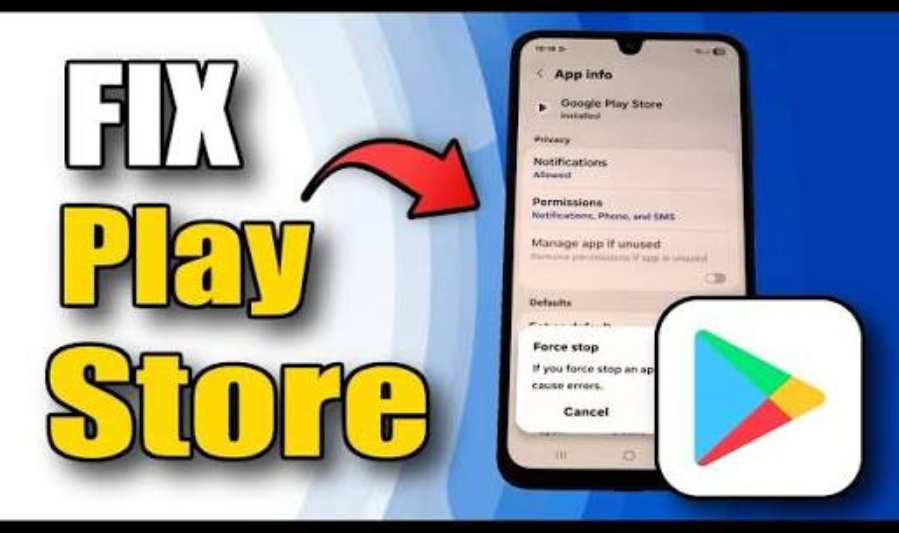
Before fixing a Google Play Store problem, you should identify its symptoms and understand what might be causing it. Errors can prevent apps from downloading, installing, or updating, while other problems may stop the Play Store from opening altogether. Recognizing the issue helps you choose the right solution and avoid unnecessary changes. <Cite refs={[“turn664725search0″,”turn664725search2”]}/>
2.1 Common Signs of Play Store Problems
Google Play Store errors can appear in different ways depending on your device and the type of problem. Some common signs include:
- Downloads stuck on pending: An app remains on “Pending” without starting the download.
- Download failures: An app stops downloading or displays an error message.
- Installation errors: The download finishes, but the app will not install.
- Apps not updating: Updates remain pending or fail repeatedly.
- Play Store not opening: The app freezes, crashes, or shows a blank screen.
- Internet connection errors: The Store cannot connect or load app details.
- Storage warnings: Your phone does not have enough free space to download or install an app.
- App compatibility problems: An app is unavailable for your device or Android version.
Google identifies connectivity, low storage, and problems opening the Play Store among the common issues that can interfere with downloads and installations. <Cite refs={[“turn664725search0″,”turn664725search5”]}/>
2.2 How to Find and Understand an Error Message
An error message can provide clues about why Google Play Store is not working correctly. Before trying different fixes, note the exact message or error code displayed on your screen.
Follow these steps to identify the problem:
- Open Google Play Store and try downloading or updating the app again.
- Read the complete error message and write down any error code.
- Check whether the problem affects one app or several apps.
- Test your Wi-Fi or mobile data connection by opening a website.
- Open your phone’s Settings and check the available storage space.
- Look for relevant troubleshooting instructions in Google’s official Play Store Help Center.
For example, if the error mentions insufficient storage, free up space before trying the download again. If only one app fails to download, check whether it is available for your device. If several apps fail, investigate your connection and the Play Store itself. <Cite refs={[“turn664725search0″,”turn664725search2”]}/>
You can find official instructions here: Google Play Help: Fix problems downloading apps.
2.3 Why the Same Error May Have Different Causes
The same Google Play Store error can have different causes on different Android devices. An error message is a useful starting point, but it does not always identify the exact issue.
For example, a download that remains pending may be caused by an unstable internet connection, insufficient storage, or another download already in progress. An installation failure may instead be related to device compatibility or a temporary software problem. <Cite refs={[“turn664725search0″,”turn664725search2”]}/>
Several factors can explain why the same error appears for different reasons:
- Internet connectivity: Weak Wi-Fi or mobile data can interrupt downloads.
- Available storage: Limited free space can prevent apps from downloading or installing.
- Device compatibility: Some apps are not available for particular devices or Android versions.
- Temporary software issues: A Play Store glitch may prevent downloads from completing.
- Device-specific settings: Android versions and manufacturer settings can differ between phones.
To troubleshoot effectively, start with basic checks, such as testing your internet connection, checking storage, closing and reopening the Play Store, and restarting your device. If the problem affects only one app, check its availability and compatibility first. These steps help narrow down the likely cause before you try more advanced solutions.
How to Fix Google Play Store Not Opening
Google Play Store may fail to open because of temporary software glitches, corrupted cache files, outdated Android software, or problems with Google Play services. The app might freeze, crash immediately, or remain stuck on a loading screen. Fortunately, several simple troubleshooting methods can help restore normal operation without resetting your phone. <Cite refs={[“turn151246search0″,”turn151246search7”]}/>
3.1 Restart Your Android Phone
Restarting your Android phone is one of the easiest ways to troubleshoot Google Play Store problems. It can resolve temporary software glitches and background processes that prevent the app from opening correctly.
Follow these steps:
- Press and hold your phone’s power button.
- Select Restart. If this option is unavailable, select Power off.
- If you turned the phone off, wait a few seconds and switch it back on.
- Open Google Play Store and check whether it works.
If the Play Store still does not open, make sure your internet connection is working and move on to the next solution. Restarting your phone does not delete your apps or personal files. <Cite refs={[“turn151246search7″,”turn151246search10”]}/>
3.2 Force Stop Google Play Store
Force stopping Google Play Store closes its current processes. This can help when the app becomes unresponsive, freezes, or fails to load properly.
To force stop the app:
- Open your phone’s Settings.
- Tap Apps or Apps & notifications.
- Select Google Play Store. You may need to tap See all apps first.
- Tap Force stop.
- Confirm your choice if prompted.
- Return to your home screen and open Google Play Store again.
The names of these settings may differ slightly depending on your Android version and phone manufacturer.
Force stopping the Play Store does not uninstall it or delete your downloaded apps. If the problem continues, clearing its cache is a useful next step. <Cite refs={[“turn151246search0″,”turn151246search8”]}/>
3.3 Clear the Play Store Cache
Google Play Store stores temporary files called cache data to help the app load information more efficiently. If these files become corrupted or cause unexpected problems, clearing the cache may help the app work normally again.
Here is how to clear it:
- Open Settings on your Android phone.
- Go to Apps or Apps & notifications.
- Select Google Play Store.
- Tap Storage & cache or Storage.
- Select Clear cache.
- Open Google Play Store again and check whether the issue is resolved.
If clearing the cache does not work, you can consider clearing the Play Store’s storage or data. However, this may reset settings such as parental controls and password protection, so you may need to configure them again. Start with clearing the cache before trying this additional step. <Cite refs={[“turn151246search0″,”turn151246search1”]}/>
3.4 Check for Android System Updates
An outdated Android version or pending system update may contribute to software compatibility issues. Checking for available updates can help resolve problems that prevent Google Play Store from opening.
Follow these steps:
- Open your phone’s Settings.
- Look for System, Software update, or System update. On some phones, this option is under About phone.
- Tap Check for updates if the option is available.
- If an update is available, follow the on-screen instructions to download and install it.
- Restart your phone if required, then try opening Google Play Store again.
Connect to Wi-Fi and ensure your battery is sufficiently charged before installing a major update. The exact update menu depends on your phone manufacturer and Android version. <Cite refs={[“turn151246search7″,”turn151246search10”]}/>
If the Play Store still does not open after these steps, consult Google Play Help for further troubleshooting. More advanced options include uninstalling Play Store updates or clearing Google Play services cache, but these should be attempted carefully and only when simpler fixes have failed.
How to Fix Google Play Store Downloads Stuck at 0%
When Google Play Store downloads remain stuck at 0%, the app may be unable to establish a stable connection, process queued downloads, or access enough storage to complete the installation. This problem can affect new apps and existing app updates. Fortunately, you can try several simple solutions before moving on to more advanced troubleshooting. <Cite refs={[“turn930908search0″,”turn930908search8”]}/>
4.1 Check Your Wi-Fi or Mobile Data
A weak or unstable internet connection is a common reason Google Play Store downloads fail to start. Even when your phone shows that it is connected to the internet, the connection may not be reliable enough to download apps.
Follow these steps:
- Open your browser and visit a website to check whether your internet is working.
- If you are using Wi-Fi, move closer to the router or restart the router if necessary.
- If you are using mobile data, check that mobile data is enabled and your signal is strong.
- Switch from Wi-Fi to mobile data, or from mobile data to Wi-Fi, and try downloading the app again.
- If you are using mobile data, check the Play Store’s app download preference to ensure downloads are allowed over your current connection.
Google recommends using a strong internet connection, preferably Wi-Fi, when troubleshooting downloads. Remember that mobile data downloads may consume your data allowance. <Cite refs={[“turn930908search0″,”turn930908search8”]}/>
4.2 Cancel and Restart the Download
Sometimes, a download gets stuck because of a temporary Play Store glitch. Canceling the affected download and starting it again can help refresh the process.
Try the following steps:
- Open Google Play Store.
- Search for the app that is stuck at 0%.
- Tap Cancel if the option is available.
- Wait a few seconds.
- Tap Install again and check whether the download starts.
If the problem continues, close Google Play Store and reopen it before trying again. You can also restart your phone to clear temporary software issues.
Avoid repeatedly tapping Install without canceling the stuck process first. If the same app remains stuck, move on to checking storage and pending updates. <Cite refs={[“turn930908search0″,”turn930908search8”]}/>
4.3 Check Available Storage Space
Insufficient storage can prevent Google Play Store from downloading or installing apps. Even if your phone has some free space, a large app or game may require more room to complete installation.
To check your available storage:
- Open your phone’s Settings.
- Tap Storage or Battery and device care > Storage, depending on your device.
- Check how much free space remains.
- Delete unnecessary downloads, duplicate files, or unused apps if storage is low.
- If you need to remove photos or videos, back them up before deleting them.
- Return to Google Play Store and try downloading the app again.
Google notes that having less than 1 GB of available storage may indicate that your device is running low on space. Larger apps may require considerably more, so leave enough room for the specific app you want to install. <Cite refs={[“turn930908search0″,”turn930908search1”]}/>
4.4 Review Pending App Updates
Google Play Store may process existing downloads and app updates before starting a new one. If several apps are waiting in the queue, a new download may remain stuck at 0%.
To review pending updates:
- Open Google Play Store.
- Tap your profile picture in the top-right corner.
- Select Manage apps & device.
- Open the updates section and review the apps currently downloading or waiting for updates.
- Allow an existing update to finish, or cancel unnecessary queued downloads if your device provides that option.
- Return to the app you want to install and try again.
If many apps are updating simultaneously, pause or cancel the less important ones and download the app you need first. Once it installs successfully, you can update the remaining apps.
This method is especially useful when one app remains stuck at 0% while other downloads or updates are waiting in the background. <Cite refs={[“turn930908search8″,”turn930908search5”]}/>
Final Thoughts
If Google Play Store downloads are stuck at 0%, start by checking your internet connection, canceling and restarting the download, and freeing up storage space. Next, review pending app updates that may be delaying the download. If none of these solutions works, try clearing the Google Play Store cache or restarting your Android phone before attempting more advanced fixes.
How to Fix Apps Not Installing from Google Play Store
When apps fail to install from Google Play Store, the problem may be related to insufficient storage, device compatibility, corrupted temporary files, or a temporary Android software issue. You might see an error message, an installation that never finishes, or a download that completes without installing the app. The following solutions can help you identify and resolve the problem. <Cite refs={[“turn774723search0″,”turn774723search3”]}/>
5.1 Check Device Storage
Insufficient storage is a common reason Android apps fail to download or install. Even if your phone has some free space, a large app may require additional room to complete installation.
To check your available storage:
- Open Settings on your Android phone.
- Tap Storage. On some devices, this option appears under Battery and device care.
- Check how much free space is available.
- Remove unnecessary downloads, duplicate files, or apps you no longer use.
- Back up important photos and videos before deleting them.
- Return to Google Play Store and try installing the app again.
Google advises checking storage when downloads or installations fail. Less than 1 GB of free space can indicate that your device is running low, although individual apps may require more space. <Cite refs={[“turn774723search0″,”turn774723search1”]}/>
5.2 Confirm App Compatibility
Not every Android app works on every phone or tablet. An app may require a newer Android version, specific hardware, or availability in your country or region.
To check compatibility:
- Open Google Play Store and search for the app.
- Open the app’s details page.
- Check whether the app is available for your device.
- Review any requirements or compatibility information provided by the developer.
- If an update is available for your Android device, consider installing it before trying again.
If Google Play Store says the app is unavailable or incompatible, clearing the cache may not solve the problem. The app developer may need to support your device or Android version. Availability can also vary by country, so confirm that the app is offered in your region. <Cite refs={[“turn774723search2″,”turn774723search0”]}/>
5.3 Clear Google Play Store Cache
Google Play Store stores temporary files to help it load information efficiently. If these files become corrupted or interfere with downloads, clearing the cache may resolve installation problems.
Follow these steps:
- Open your phone’s Settings.
- Select Apps or Apps & notifications.
- Find and tap Google Play Store.
- Open Storage & cache or Storage.
- Tap Clear cache.
- Reopen Google Play Store and try installing the app again.
If the problem continues, you can consider selecting Clear storage or Clear data in the same menu. This resets Play Store data and may remove settings such as parental controls and password protection, so you may need to configure them again. Try clearing the cache first. <Cite refs={[“turn774723search3″,”turn774723search0”]}/>
5.4 Restart Your Phone and Retry
A temporary Android glitch or background process may prevent an app from installing correctly. Restarting your phone can refresh system processes and help resolve these temporary issues.
To restart your device:
- Save any unfinished work.
- Press and hold the power button.
- Tap Restart. If that option is unavailable, select Power off and turn the phone back on after a few seconds.
- Wait for the device to finish starting.
- Open Google Play Store and try installing the app again.
If the installation still fails, check your internet connection and date and time settings. You can also check for Android system updates through Settings > System > Software update, although the exact menu may differ by manufacturer. <Cite refs={[“turn774723search0″,”turn774723search6”]}/>
Final Thoughts
If apps are not installing from Google Play Store, start by checking your available storage and confirming that the app supports your device. Next, clear the Play Store cache and restart your phone. If the problem affects only one app, investigate its compatibility and regional availability. If multiple apps still fail to install after these steps, consult the official Google Play Help Center for further troubleshooting.
How to Fix Google Play Store Update Errors
Google Play Store updates help Android apps receive new features, performance improvements, and security fixes. However, updates sometimes get stuck on pending, fail to download, or display an error message. These problems may result from a weak internet connection, an outdated Play Store version, issues with Google Play services, or a temporary software glitch. <Cite refs={[“turn911682search0″,”turn911682search1”]}/>
6.1 Check Your Internet Connection
An unstable internet connection can interrupt app updates or prevent them from starting. Before changing your phone’s settings, make sure your connection is working properly.
Follow these steps:
- Open a browser and visit a website to test your internet connection.
- If you are using Wi-Fi, check your router and reconnect to the network if necessary.
- If you are using mobile data, make sure it is enabled and has a strong signal.
- Switch between Wi-Fi and mobile data to see whether the update starts.
- Open Google Play Store and try updating the app again.
If you use mobile data, check your download preferences and data allowance before downloading large updates. Google recommends checking your internet connection as an initial troubleshooting step for download and update problems. <Cite refs={[“turn911682search0”]}/>
6.2 Update Google Play Store Itself
An outdated or malfunctioning Play Store app may contribute to update problems. Google Play Store can usually update itself automatically, but you can manually check for an available update.
Here is how:
- Open Google Play Store.
- Tap your profile picture in the top-right corner.
- Select Settings.
- Tap About to expand the section if necessary.
- Find Play Store version and tap Update Play Store.
- Follow any on-screen instructions.
If your Play Store is already up to date, you may see a message confirming this. If problems continue, Google recommends uninstalling Play Store updates and allowing the app to update again when basic troubleshooting does not resolve the issue.
To do this, press and hold the Play Store icon, open App info, tap the three-dot menu, and select Uninstall updates, if available. Then reopen the Store and follow the steps above to update it again. <Cite refs={[“turn911682search1″,”turn911682search3”]}/>
6.3 Check Google Play Services
Google Play services is a system component that helps Android apps connect with Google services. It is separate from the Google Play Store app, but problems with it can affect app functionality and update processes. <Cite refs={[“turn911682search8”]}/>
To check for an update:
- Open your phone’s Settings.
- Look for Google Play services under Apps or All services, depending on your Android version.
- Open its details page.
- Check whether an Update or Install option is available.
- If an update is available, follow the on-screen instructions.
- Restart your phone if needed, then try updating your apps again.
The exact menu may differ by device. On some newer Android versions, Google Play services update options are available under Settings > your Google profile > All services > System services.
If updating does not help, you can try clearing the Google Play services cache after exhausting simpler solutions. Avoid clearing its storage or all data unless necessary, because doing so may remove information saved on your device, require you to reauthenticate payment methods, or sign you out of your Google Account on some devices. <Cite refs={[“turn911682search8″,”turn911682search1”]}/>
6.4 Restart Stuck App Updates
Sometimes an app update remains pending or fails to complete because of a temporary Play Store problem or a queue of other downloads. Restarting the affected update may help.
Try the following steps:
- Open Google Play Store.
- Tap your profile picture.
- Select Manage apps & device.
- Open the updates section and find the app that is stuck.
- If available, cancel the affected update and try updating the app again from its Play Store page.
- If several updates are waiting, allow one to finish before retrying the others.
- Restart your phone if the update continues to fail.
If only one app will not update, check whether it is still available and compatible with your device. If several apps are affected, revisit your internet connection, available storage, and Play Store settings. <Cite refs={[“turn911682search0″,”turn911682search7”]}/>
Final Thoughts
To fix Google Play Store update errors, start by checking your internet connection and updating the Play Store itself. Next, check Google Play services and restart any stuck app updates. If these steps do not work, try clearing the Play Store cache and consult the official Google Play Help Center for additional troubleshooting guidance.
Google Play Store Error Codes Explained
Google Play Store error codes help users identify problems that occur while downloading apps, installing applications, or completing purchases. Some codes are associated with missing content or network-related failures, while others may involve account information or payment processing. Understanding what an error might indicate can help you choose the right troubleshooting steps. However, older Play Store error codes are not always explained in Google’s current public help documentation, so their exact causes may vary by device and situation. <Cite refs={[“turn311371search0″,”turn311371search2”]}/>
7.1 Error 403
Google Play Store error 403 is commonly reported in older troubleshooting guides as an access or authorization problem. It may appear when a user attempts to download an app or access content but the request does not complete successfully. The exact cause is not always the same, so avoid assuming that every 403 error has one specific solution.
Try these steps:
- Check that your internet connection is stable.
- Confirm that you are signed in to the intended Google Account.
- If you use multiple Google Accounts, check whether the app is available to the account you are using.
- Close Google Play Store, reopen it, and retry the download.
- Check whether the app is available in your country and compatible with your device.
If the error persists, consult Google Play Help for guidance related to the specific app or transaction. Avoid removing your Google Account unless simpler troubleshooting methods fail.
7.2 Error 404
Error 404 generally means that the requested item or page cannot be found. In a Google Play context, this may occur when an app listing or link is unavailable, has changed, or cannot be accessed as expected. This interpretation is based on the general meaning of HTTP 404; it is not a guarantee that every Play Store error displaying 404 has the same cause.
To troubleshoot the problem:
- Search for the app directly in Google Play Store instead of using an old link.
- Check whether the developer has removed or renamed the app.
- Confirm that the app is available for your device and region.
- Try opening the listing using a stable internet connection.
- If only one app is affected, check its availability before changing your phone’s settings.
If the listing remains unavailable, the app may no longer be offered to your device or account. Clearing the Play Store cache will not restore an app listing that has genuinely been removed.
<WritingBlock id=”63827″ variant=”document”>### 7.3 Error 495
Google Play Store error 495 is traditionally associated with problems downloading or updating apps. However, Google does not provide a confirmed, code-specific explanation for this error in its general public troubleshooting guide. The cause may involve a temporary connection or Play Store problem, so start with basic checks rather than assuming one particular fault. <Cite refs={[“turn497554search2″,”turn311371search2”]}/>
Try these solutions:
- Switch between Wi-Fi and mobile data to test your connection.
- Restart your Android phone.
- Open Settings > Apps > Google Play Store > Storage & cache.
- Tap Clear cache and reopen the Play Store.
- Check whether your phone has enough free storage.
- If the error persists, review Google’s advanced troubleshooting instructions.
If you are considering clearing Google Play services data, treat it as a later step because it can affect saved information and require some services to be set up again. Start with less disruptive fixes first.
7.4 Error 504
Google Play Store error 504 is often listed in third-party troubleshooting guides as an app download or installation problem. Its exact meaning can depend on the context in which it appears, and Google does not provide a definitive explanation for this specific code in its general download troubleshooting guide. <Cite refs={[“turn497554search6″,”turn311371search2”]}/>
To troubleshoot it:
- Check your Wi-Fi or mobile data connection.
- Confirm that your device has enough available storage.
- Restart your phone and try downloading the app again.
- Clear the Google Play Store cache.
- Check for available Android system updates.
- If only one app is affected, confirm that it is compatible with your device.
If the error continues, record the exact message and the action that triggered it. This information can help distinguish an app-specific problem from a broader Play Store issue.
You mayalso like to read these posts:
Best Toilet Repair Kit: Top Choices for Easy and Reliable Toilet Repairs
Best Toilet Repair Kit: Top Picks for Easy and Reliable Toilet Repairs
Best Drain Snake for Home: Top Picks for Easy and Effective Clog Removal
Notion vs Evernote for Students: Features, Pricing, Pros & Cons, and Which Is Better
7.5 Error DF-BPA-09
DF-BPA-09 is a legacy Google Play error code reported in connection with certain download or purchase operations. It is commonly described in third-party troubleshooting resources as a problem processing a request, but its exact cause is not confirmed by Google’s general public help documentation. <Cite refs={[“turn497554search7″,”turn311371search2”]}/>
You can try the following steps:
- Check your internet connection and retry the operation.
- Close Google Play Store and restart your phone.
- Open Settings > Apps > Google Play Store > Storage & cache and tap Clear cache.
- Check that your Google Account is working correctly.
- If the error occurs during a purchase, review your payment details and any alerts in your Google payments profile.
- If the problem persists, consult Google Play Help before clearing app data or changing account settings.
If DF-BPA-09 appears during a paid purchase, check whether the transaction was completed before trying again. This helps you avoid accidentally repeating a purchase.
7.6 What to Do When an Error Code Returns
If a Google Play Store error code keeps appearing after troubleshooting, avoid repeating the same steps indefinitely. Instead, record the error and follow a systematic approach to narrow down the cause.
Use this checklist:
- Record the exact code: Note the full message and whether it appeared during a download, installation, update, or purchase.
- Test your connection: Switch networks if possible and retry the operation.
- Check available storage: Free up space if your device is running low.
- Restart the device: This can resolve temporary software glitches.
- Clear the Play Store cache: Try this before clearing app data.
- Check for updates: Install available Android system and Play Store updates.
- Investigate account or payment problems: If the error occurs during a purchase, review your Google Account and payment information.
- Seek official help: Use the Google Play Help Center for further guidance.
Google’s official troubleshooting guide recommends checking connectivity, storage, Android updates, and device operation when downloads or installations fail. <Cite refs={[“turn311371search2″,”turn311371search0”]}/>
Remember that an error code is a clue, not always a complete diagnosis. If a particular code continues to return, use the exact message and the action that triggered it to choose the next step rather than relying on a generic fix.
FAQS:
How do I fix Google Play Store errors quickly?
To fix Google Play Store errors quickly, check your internet connection, restart your Android phone, clear the Play Store cache, and make sure you have enough storage space. These simple steps can resolve many common problems.
Why is Google Play Store not downloading apps?
Google Play Store may not download apps because of a weak internet connection, pending updates, insufficient storage, or temporary service issues. Check your download queue and try switching between Wi-Fi and mobile data.
What happens if I clear Google Play Store data?
Clearing Google Play Store data resets its local settings and stored app information. It does not normally uninstall your installed apps, but you may need to review your Play Store settings afterward. Try clearing the cache first.
Why does Google Play Store keep stopping on Android?
Google Play Store may keep stopping because of corrupted cache files, outdated software, or problems with Google Play Services. Restart your phone, clear the Play Store cache, and check for available updates.
How do I fix Google Play Store errors on Samsung and Xiaomi phones?
On Samsung and Xiaomi phones, check your internet connection, available storage, app restrictions, and software updates. You can also clear the Google Play Store cache through your phone’s Settings. Menu names may vary by device and Android version.
Conclusion
Google Play Store errors can be frustrating, especially when you cannot download, install, or update your favorite apps. Fortunately, most common problems can be resolved by checking your internet connection, restarting your phone, clearing the Play Store cache, freeing up storage space, or updating your Android software.
If you are looking for ways on how to fix Google Play Store errors, start with the simplest solutions before trying advanced troubleshooting methods. Avoid resetting your phone unless other options have failed, and consult official Google Play Help resources if the problem continues. By following these steps, you can resolve many common Play Store issues and enjoy a smoother Android experience.