
Introduction
Graphic design has become an important skill for students, content creators, freelancers, and businesses. Whether you need to create social media posts, presentations, YouTube thumbnails, posters, flyers, or marketing materials, choosing the right design tool can save time and help you produce professional-looking content. Two popular options are Canva and Adobe Express, both of which offer beginner-friendly tools for creating visual designs.
Canva is widely used for its templates, drag-and-drop editor, and variety of design formats. It allows users to create graphics, presentations, documents, videos, and other visual content without requiring advanced graphic design skills. Adobe Express is another accessible design platform that provides templates, photo and video editing tools, design assets, and AI-powered features. It also integrates with other Adobe applications, making it useful for people who already work within the Adobe ecosystem. <Cite refs={[“turn306455search0″,”turn306455search3″,”turn306455search7”]}/>
Choosing the right graphic design tool matters because each platform offers a different combination of features, editing options, templates, and pricing plans. Beginners may prioritize ease of use, while professional content creators may focus on brand consistency, image editing, and advanced creative features. Students and freelancers may also need to consider whether the free version provides enough tools for their projects.
In this Canva vs Adobe Express comparison, we will explore the main features of both platforms, including their design tools, templates, AI capabilities, ease of use, photo and video editing, collaboration options, and pricing. We will also compare their strengths and limitations to help you decide which tool is better for your specific needs.
By the end of this guide, you will have a clearer understanding of Canva and Adobe Express and be able to choose the platform that best fits your design goals, skill level, and budget.
What Is Canva?
Overview of Canva
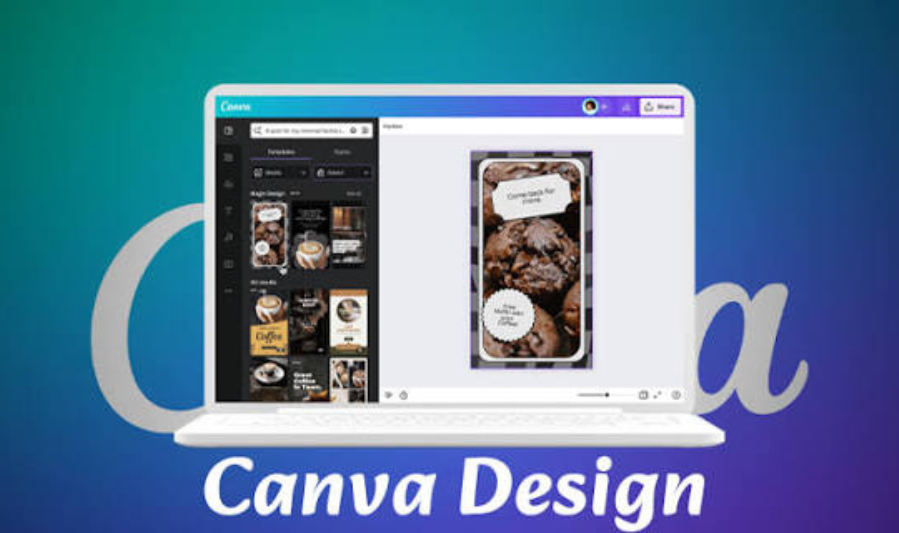
Canva is an online graphic design platform that allows users to create professional-looking visual content without needing advanced design skills. It provides a user-friendly editor, ready-made templates, images, graphics, fonts, and other design resources that make creating attractive designs easier for beginners and experienced creators.
Users can access Canva through a web browser or its mobile and desktop applications. It supports a wide range of creative projects, including social media graphics, presentations, YouTube thumbnails, posters, flyers, resumes, invitations, and short videos.
One of Canva’s biggest advantages is its drag-and-drop editor. Instead of creating every design element from scratch, users can choose a template, replace text and images, adjust colors, and customize the layout to match their needs. This approach makes Canva a popular option for individuals, students, small businesses, and digital content creators. <Cite refs={[“turn252702search0″,”turn252702search5”]}/>
Main Features and Design Capabilities
Canva offers a broad range of design tools that support different creative needs. Its main features include:
- Ready-Made Templates: Users can start with templates for social media posts, presentations, posters, business materials, and other design projects.
- Drag-and-Drop Editor: Text, images, shapes, and other elements can be added, moved, resized, and customized easily.
- Photo and Video Editing: Canva includes tools for editing images and creating or editing videos, with some advanced features available only on paid plans.
- Typography and Graphics: Users can choose fonts, icons, illustrations, shapes, and other visual elements to improve their designs.
- AI-Powered Tools: Canva offers AI-assisted design and content features, including tools for generating or editing visual content. Availability and usage limits depend on the plan.
- Presentations and Documents: Users can create presentations, visual documents, educational materials, and other content within the same platform.
- Branding Tools: Brand Kits help users maintain consistent colors, fonts, and logos across multiple designs, with expanded capabilities on paid plans.
- Sharing and Collaboration: Designs can be shared with others, and supported collaboration features allow users to work together on projects.
Canva’s Free plan provides access to many essential design features, while paid plans unlock additional premium content, advanced editing tools, and increased cloud storage. <Cite refs={[“turn252702search0″,”turn252702search2″,”turn252702search5”]}/>
Who Should Use Canva?
Canva is suitable for people who want to create attractive designs quickly without learning complicated graphic design software. Its templates and straightforward editing tools make it useful for several types of users.
Students and Teachers: Students can create presentations, project covers, infographics, and educational posters. Teachers can prepare worksheets, classroom presentations, and learning materials.
Social Media Managers: Content creators can design Instagram posts, Facebook graphics, Pinterest pins, and other social media content in different formats.
YouTubers and Bloggers: YouTubers can create thumbnails and channel graphics, while bloggers can design featured images, infographics, and promotional graphics for their articles.
Freelancers and Small Business Owners: Freelancers can prepare portfolios, promotional materials, resumes, and client graphics. Small businesses can create marketing designs and maintain consistent branding without necessarily hiring a professional designer for every project.
Beginners and Hobbyists: People with little design experience can use templates and simple editing tools to produce appealing visual content.
Canva is especially useful when speed, convenience, and ease of use matter more than detailed manual control over every design element.
Canva Free vs Canva Pro
Canva offers free and paid plans to accommodate different design requirements. Canva Free is suitable for beginners and occasional users, while Canva Pro is designed for individuals who need more premium resources and advanced creative tools.
| Feature | Canva Free | Canva Pro |
|---|---|---|
| Design templates | Access to free templates | Larger library, including premium templates |
| Photos, graphics, and videos | Free content library | Expanded premium content library |
| Basic design editor | Included | Included |
| AI features | Limited usage and feature access | Higher AI allowances and additional tools |
| Background removal | Not generally included as a standard Free feature | Available through supported premium tools |
| Magic Resize | Limited or unavailable, depending on the tool | Available |
| Brand Kits | One basic Brand Kit with limited colors | Multiple Brand Kits and expanded branding options |
| Social media scheduling | Not included in the standard Free plan | Included through supported content-planning features |
| Cloud storage | 5 GB | 100 GB |
| Cost | Free | Paid subscription |
These features are based on Canva’s current official plan comparison; individual tools and limits may change over time. <Cite refs={[“turn252702search0″,”turn252702search3″,”turn252702search5”]}/>
Canva Free is a good starting point for students, beginners, and people who create designs occasionally. It provides essential editing tools and a substantial selection of templates and design assets without requiring a subscription.
Canva Pro is more suitable for frequent creators, bloggers, freelancers, and businesses that regularly produce branded content. Premium resources, background removal, resizing tools, increased storage, and expanded AI access can help speed up repetitive design tasks.
Ultimately, you do not need Canva Pro to create useful designs. Start with the free plan and consider upgrading only if you regularly need premium assets or features that are unavailable in your current plan. You can check the latest features and prices on the official Canva pricing page.
What Is Adobe Express?
Overview of Adobe Express
Adobe Express is an online graphic design and content creation platform developed by Adobe. It allows users to create professional-looking graphics, social media posts, videos, flyers, presentations, and marketing materials without needing advanced design skills. Its beginner-friendly interface makes it suitable for students, freelancers, content creators, and businesses.
Adobe Express combines design templates, photo editing, video creation, fonts, stock assets, and AI-powered tools in one platform. Users can start with a ready-made template or create a design from scratch by adding text, images, shapes, and other visual elements.
One of Adobe Express’s major advantages is its connection to the wider Adobe ecosystem. Users who work with applications such as Photoshop, Illustrator, Acrobat, and Lightroom may find it useful for combining different creative resources in their projects. Adobe Express also includes Adobe Firefly-powered generative AI features for supported creative tasks. <Cite refs={[“turn126128search3″,”turn126128search4”]}/>
Like Canva, Adobe Express focuses on making graphic design more accessible. However, its Adobe integrations, creative assets, and editing features can make it particularly attractive to users who already use Adobe products.
Main Features and Creative Tools
Adobe Express offers several tools that help users create and customize visual content. Its main features include:
- Ready-Made Templates: Users can choose templates for social media posts, posters, flyers, presentations, invitations, and promotional graphics.
- Photo Editing: The platform provides image adjustments, effects, cropping, and other editing tools. Some advanced editing features are available only with Premium.
- Video Creation and Editing: Users can create short videos, add text and visual elements, and edit video content using supported tools.
- Adobe Stock Assets: Adobe Express provides access to royalty-free stock photos, videos, music, and design elements, with a larger selection available on paid plans.
- Adobe Fonts: Users can choose from a collection of fonts to improve typography and create visually appealing designs.
- AI-Powered Design Tools: Adobe Firefly supports creative tasks such as generating images and other visual elements. Available tools and usage limits depend on the plan.
- Quick Actions: Supported tools help users complete common tasks, including converting files, editing PDFs, resizing content, and removing backgrounds.
- Branding Tools: Premium users can access Brand Kits to maintain consistent logos, colors, fonts, and other visual elements across designs.
- Social Media Scheduling: Users can plan and schedule social media posts, with account limits depending on the subscription.
- Adobe App Integration: Adobe Express supports workflows involving other Adobe applications, making it useful for users who work across multiple creative tools. <Cite refs={[“turn126128search2″,”turn126128search3″,”turn126128search4”]}/>
These features make Adobe Express suitable for creating both simple graphics and more polished marketing content. However, users who need highly advanced image manipulation or detailed vector illustration may still prefer dedicated applications such as Photoshop or Illustrator.
Who Should Use Adobe Express?
Adobe Express is designed for users who want to create attractive visual content quickly without learning complicated design software. Its templates and editing tools can support a variety of creative and professional activities.
Students and Teachers: Students can design presentations, project covers, posters, and infographics. Teachers can prepare educational materials and classroom graphics.
Social Media Managers: Content creators can make promotional posts, short videos, and graphics for platforms such as Instagram, Facebook, and TikTok.
YouTubers and Video Creators: Adobe Express can help create thumbnails, channel graphics, promotional videos, and other visual assets for online content.
Freelancers and Small Businesses: Freelancers can design marketing materials, portfolios, advertisements, and branded content. Small businesses can produce promotional graphics while maintaining consistent visual branding.
Adobe Creative Cloud Users: People who already use Adobe applications may appreciate the integration with other Adobe tools and the ability to incorporate compatible creative assets into their designs.
Beginners: Users without formal graphic design training can start with templates and gradually explore more advanced editing and AI features.
Adobe Express is particularly suitable for users who want accessible design tools combined with Adobe’s creative resources and integrations.
Adobe Express Free vs Premium
Adobe Express offers a Free plan and a paid Premium plan. The Free plan provides essential tools for everyday design work, while Premium unlocks additional assets, advanced features, and higher usage limits.
| Feature | Adobe Express Free | Adobe Express Premium |
|---|---|---|
| Design templates | Large selection of free templates | Access to additional premium templates |
| Stock photos and graphics | Free assets available | Expanded premium asset library |
| Fonts | More than 4,000 fonts | Expanded collection, including more than 30,000 fonts |
| Basic photo and video editing | Included | Included, with additional editing features |
| Background removal | Limited access to premium tools | Additional background-removal tools |
| AI-powered features | Limited or plan-specific access | Expanded generative AI features and credits |
| Resize tools | Basic options and available quick actions | Advanced one-click resizing |
| Brand Kits | Limited branding options | Expanded brand management tools |
| Social media scheduling | Schedule posts to one account per social network | Schedule posts to three accounts per social network |
| Cloud storage | 5 GB | 100 GB |
| Version history | 10 days | 30 days |
| Price | Free | Paid subscription |
These features are based on Adobe’s published plan information. Exact availability, AI credits, and feature limits may change, so check the official pricing page before subscribing. <Cite refs={[“turn126128search2″,”turn126128search3″,”turn126128search8”]}/>
Adobe Express Free is suitable for beginners, students, and occasional creators who need basic design tools without paying for a subscription. It includes templates, fonts, standard editing features, and a selection of royalty-free assets.
Adobe Express Premium is more appropriate for freelancers, content creators, and businesses that regularly produce visual content. Its premium templates, expanded stock library, advanced editing tools, Brand Kits, and additional AI features can help speed up repetitive design tasks and maintain a consistent brand identity.
The best choice depends on how frequently you create designs and which tools you actually need. If you only make occasional social media posts or presentations, the Free plan may be sufficient. If you regularly create branded content or need advanced editing features, Premium may provide better value.
You can explore the latest plans and features on the official Adobe Express pricing page.
Canva vs Adobe Express: Quick Comparison
Canva and Adobe Express are two popular graphic design platforms that help users create social media posts, presentations, YouTube thumbnails, promotional graphics, and other visual content. Both offer free plans, ready-made templates, AI-powered tools, and beginner-friendly editing features. However, they differ in their design libraries, editing capabilities, pricing, and integration with other creative tools.
When comparing Canva vs Adobe Express, Canva stands out for its broad range of design formats and customizable templates, while Adobe Express is particularly appealing to users who want Adobe Stock assets, Firefly-powered AI features, and integration with other Adobe applications. <Cite refs={[“turn422960search4″,”turn422960search9”]}/>
Ease of Use
Both platforms are designed to make graphic design accessible to beginners, even without professional design experience.
Canva uses a drag-and-drop editor that makes it easy to select a template, replace text, add images, adjust colors, and customize layouts. Its broad selection of templates helps beginners create attractive designs quickly.
Adobe Express also offers a straightforward editor with templates, quick actions, and simple photo and video editing tools. Its interface is useful for users who want to create designs quickly or work with existing Adobe assets. <Cite refs={[“turn422960search1″,”turn422960search9”]}/>
Winner: Canva for many beginners. Its template-driven workflow makes it a convenient starting point for students, bloggers, and social media creators. However, users already familiar with Adobe products may find Adobe Express equally comfortable.
Templates and Design Options
Templates can save time and help users create consistent designs without starting from scratch.
Canva provides templates for social media graphics, presentations, documents, posters, marketing materials, videos, and many other formats. Its extensive library makes it particularly useful for creators who produce different types of content regularly.
Adobe Express also offers templates for social media posts, flyers, videos, advertisements, and promotional materials. It combines these with Adobe Stock assets and Adobe Fonts, giving users a wide selection of visual resources. <Cite refs={[“turn422960search11″,”turn422960search5”]}/>
Winner: Canva for template variety. It is a strong choice for users who frequently create different types of designs. Adobe Express is an excellent alternative for users who value its stock assets, typography, and Adobe integrations.
Photo and Video Editing
Both platforms support photo and video creation, making them useful for content creators and small businesses.
Canva allows users to create social media graphics, edit images, assemble videos, add text and animations, and prepare visual content for different platforms. Its design-focused workflow makes it convenient to combine images, typography, and other elements in one project.
Adobe Express provides photo adjustments, video editing tools, effects, and quick actions. Its Premium plan includes additional capabilities, such as advanced animation, background removal for videos, and one-click resizing. It also connects with other Adobe creative tools. <Cite refs={[“turn422960search5″,”turn422960search8”]}/>
Winner: It depends on your workflow. Canva is a strong all-around option for combining graphics, presentations, and short videos. Adobe Express may be preferable if you already use Adobe applications or want its specific photo and video editing features.
Neither platform replaces specialized professional software for every advanced editing task.
AI Tools
Artificial intelligence is becoming an important part of graphic design, helping users generate images, edit visuals, and speed up repetitive tasks.
Canva offers AI-powered design and content tools that assist with creating and editing visual materials. Depending on the plan and usage limits, these features can help users generate content, resize designs, and make edits more efficiently.
Adobe Express includes AI features powered by Adobe Firefly, with tools for generating and editing creative content. Its Premium plan includes monthly generative credits, while available features and usage limits depend on the subscription. Adobe Express also benefits from its connections with other Adobe applications. <Cite refs={[“turn422960search11″,”turn422960search2″,”turn422960search5”]}/>
Winner: A close comparison. Canva is attractive for users who want AI features integrated into a broad design workflow, while Adobe Express is appealing to users interested in Firefly-powered creativity and Adobe integrations. The better choice depends on the specific AI tasks you perform and the limits included in your plan.
Pricing and Free Plans
Both Canva and Adobe Express offer free plans, so users can start designing without an immediate subscription.
Canva Free includes essential editing tools, templates, design assets, and 5 GB of cloud storage. Canva Pro adds premium templates and assets, additional AI usage, Brand Kits, background-removal tools, resizing features, and 100 GB of storage. Canva’s published US annual price for Pro is currently $144 per year for one person. <Cite refs={[“turn422960search11”]}/>
Adobe Express Free includes basic editing tools, templates, stock assets, and 5 GB of storage. Adobe Express Premium adds premium templates and assets, expanded AI features, advanced editing tools, Brand Kits, scheduling for more social accounts, and 100 GB of storage. Adobe’s published US monthly price for Premium is $9.99. <Cite refs={[“turn422960search5”]}/>
| Pricing factor | Canva | Adobe Express |
|---|---|---|
| Free plan | Yes | Yes |
| Paid individual plan | Canva Pro | Adobe Express Premium |
| Premium templates and assets | Available with Pro | Available with Premium |
| AI features | Plan-dependent usage limits | Plan-dependent generative credits |
| Cloud storage on the listed individual plans | 5 GB Free; 100 GB Pro | 5 GB Free; 100 GB Premium |
| Best reason to upgrade | Premium design resources and broader design workflow | Adobe assets, advanced tools, and Adobe integrations |
These are published US prices and plan details, not guaranteed prices in Pakistan. Local pricing, taxes, promotions, and subscription terms may differ or change.
Winner: It depends on the features you need. Both free plans are useful for beginners. Compare the paid features you will actually use rather than choosing based on price alone.
Collaboration and Brand Management
Collaboration and brand management matter when multiple people create content for the same business, organization, or social media account.
Canva allows users to share designs and collaborate on projects. Its paid plans provide expanded branding and team features, including Brand Kits and, on applicable plans, team administration and approval tools. These capabilities are useful for maintaining consistent colors, fonts, and logos across multiple designs. <Cite refs={[“turn422960search11″,”turn422960search4”]}/>
Adobe Express also supports shared projects and collaboration. Its business-oriented plans include Brand Kits, branded templates, template locking, and additional administrative controls. These features help teams maintain brand consistency and manage content creation at scale. <Cite refs={[“turn422960search3″,”turn422960search4”]}/>
Winner: Both are strong options. Canva is a convenient choice for creators and teams that want an all-in-one design workspace. Adobe Express is particularly attractive for teams already using Adobe applications or needing Adobe’s brand-management workflow. Available collaboration and administration features depend on the selected plan.
Quick Comparison Table
| Category | Canva | Adobe Express |
|---|---|---|
| Ease of use | Very beginner-friendly | Beginner-friendly |
| Templates | Extensive variety | Broad selection of templates |
| Photo editing | Strong everyday design tools | Strong editing and quick actions |
| Video creation | Convenient all-in-one workflow | Useful editing tools and Adobe integration |
| AI tools | Integrated AI design features | Firefly-powered AI features |
| Free plan | Good for basic design work | Good for basic design work |
| Collaboration | Strong sharing and team options | Strong sharing and business-oriented options |
| Brand management | Brand Kits and team tools | Brand Kits and template controls |
| Best for | General-purpose design and content creation | Adobe-connected creative workflows |
Which Tool Should You Choose?
Overall, Canva is a strong choice for most beginners, students, bloggers, and social media creators who want a versatile platform with a wide selection of templates and design formats.
Adobe Express is a compelling alternative for people who value Adobe Stock, Firefly-powered AI tools, and integration with Photoshop, Illustrator, Acrobat, and other Adobe applications.
Before subscribing, try the free version of each platform with a real project, such as a YouTube thumbnail or social media post. This will help you compare the editing experience and determine which platform better fits your creative needs and budget.
Official resources: Canva Pricing | Adobe Express Pricing
Ease of Use
Ease of use is an important factor when choosing between Canva and Adobe Express. Whether you are a beginner, student, freelancer, or social media content creator, the right design tool should help you create attractive graphics without wasting time learning complicated software. Both platforms offer user-friendly interfaces, ready-made templates, and simple editing tools, but their workflows have some differences.
In this Canva vs Adobe Express comparison, Canva stands out for its straightforward template-based design process, while Adobe Express offers convenient creative tools and quick actions for everyday design tasks. The best choice depends on your experience, design requirements, and preferred way of working.
Canva’s User Interface
Canva features a clean interface that makes it easy to start a design and customize it. Users can browse templates, search for design elements, upload their own images, and edit text using the drag-and-drop editor. The main editing area displays the design, while side panels provide access to templates, graphics, photos, text, and other resources. <Cite refs={[“turn933677search13″,”turn933677search5”]}/>
One of Canva’s biggest advantages is that users can begin with a ready-made template instead of designing everything from scratch. For example, if you want to create a YouTube thumbnail, you can search for thumbnail templates, choose a suitable layout, replace the existing text, add your own image, and adjust the colors.
Canva also makes it relatively easy to create different types of content within the same platform. Users can switch between social media graphics, presentations, posters, documents, and videos without needing separate design applications.
The interface is especially helpful for beginners because most common tasks can be completed through visible menus and simple editing actions. However, users may need time to explore the extensive collection of templates, elements, and additional features.
Adobe Express’s User Interface
Adobe Express also provides a beginner-friendly interface, with templates, editing tools, and quick actions available from its main workspace. Users can start a new project, select a design format, choose a template, and customize the content according to their needs. <Cite refs={[“turn933677search2″,”turn933677search11”]}/>
One useful feature is its Quick Actions section. These tools help users complete common tasks such as resizing images, removing backgrounds, trimming videos, converting files, and editing PDFs. This can save time when you need to make a specific change rather than build a complete design from scratch. <Cite refs={[“turn933677search3″,”turn933677search4”]}/>
For example, a freelancer who needs to remove an image background or resize a promotional graphic can use an appropriate quick action and then continue editing the result.
Adobe Express also offers AI-powered design tools that can generate editable templates from text descriptions, where the feature is available. This can help users turn an initial idea into a design that they can customize further. <Cite refs={[“turn933677search0″,”turn933677search2”]}/>
Although the basic workflow is simple, beginners may need some time to become familiar with the available editing options and Adobe-specific features. Users who already work with Adobe products may find the environment more familiar.
Which Tool Is Easier for Beginners?
Both Canva and Adobe Express are suitable for beginners, but Canva may be the easier starting point for people who have never used a graphic design tool before.
Canva makes it straightforward to find a template, replace text and images, and create a finished design. Its broad selection of templates also helps users understand how to arrange elements and choose suitable colors and fonts.
Adobe Express is similarly accessible, particularly for users who want quick editing tools or prefer working with Adobe’s creative resources. Its Quick Actions can make specific tasks easier, even for people without graphic design experience.
Here is a quick comparison:
| Beginner requirement | Canva | Adobe Express |
|---|---|---|
| Finding a template | Easy | Easy |
| Editing text and images | Straightforward | Straightforward |
| Creating social media graphics | Very convenient | Very convenient |
| Completing quick editing tasks | Good range of tools | Strong Quick Actions workflow |
| Exploring different design formats | Extensive variety | Broad selection |
| Best starting point for most new designers | Slight advantage | Strong alternative |
Winner: Canva for most beginners. Its template-driven workflow makes it especially convenient for students, bloggers, YouTubers, and social media managers who want to create designs quickly.
However, Adobe Express may be just as easy for users who mainly need quick edits or already understand Adobe’s creative environment.
Learning Curve and Workflow
The learning curve refers to how much time and effort you need to become comfortable using a tool. Workflow refers to the steps you follow to complete a design, from choosing a template to exporting the final file.
Canva’s learning curve
Canva has a relatively gentle learning curve for basic design tasks. Beginners can start with templates and gradually learn how to adjust typography, use design elements, organize pages, and create consistent layouts.
A typical Canva workflow looks like this:
- Choose the type of design you want to create.
- Search for a suitable template.
- Replace the sample text and images.
- Customize colors, fonts, and layout.
- Download or share the finished design.
This process works well for people who create similar content regularly, such as YouTube thumbnails, blog graphics, presentations, and social media posts. Once users become familiar with the editor, they can often reuse their existing designs to save time.
Adobe Express’s learning curve
Adobe Express also supports a straightforward workflow, with additional options for users who want to edit photos, create videos, use AI tools, or work with Adobe assets.
A typical workflow looks like this:
- Select a design format or quick action.
- Choose a template or begin with a blank design.
- Add text, images, and other creative elements.
- Apply editing tools and adjust the layout.
- Export or share the final result.
Its quick actions can be particularly efficient when the task involves a specific edit, such as resizing an image or removing a background. Users who already use Photoshop, Illustrator, or other Adobe products may also find it easier to incorporate Adobe Express into their existing creative workflow. <Cite refs={[“turn933677search3″,”turn933677search4”]}/>
Which workflow is better?
Canva is an excellent choice for people who want to create a variety of designs through a consistent, template-based process. Adobe Express is appealing to users who value quick editing actions, Adobe integrations, and its particular creative tools.
Overall, both platforms are easy to learn for basic tasks. Canva has a slight advantage for first-time designers, while Adobe Express is a strong alternative for creators who want convenient editing tools within Adobe’s creative ecosystem.
If you are unsure which one to choose, try creating the same social media post or YouTube thumbnail in both applications. Comparing the time required, ease of editing, and final result will help you identify the workflow that suits you best.
Templates and Design Options
Templates are an important part of the Canva vs Adobe Express comparison because they help users create professional-looking designs without starting from scratch. Both platforms offer ready-made designs for social media, marketing, presentations, flyers, posters, and other creative projects. However, they differ in their template libraries, customization features, and overall design experience.
Canva’s Template Library
Canva is well known for its extensive collection of templates covering personal, educational, and professional needs. Users can find templates for Instagram posts, YouTube thumbnails, presentations, resumes, business cards, invitations, calendars, websites, and many other formats. Its templates are designed to help beginners and experienced creators produce attractive designs quickly.
One of Canva’s biggest advantages is the variety of styles available. Whether you need a minimalist business presentation, a colorful social media post, or an educational infographic, you can search for a suitable design and customize it using the drag-and-drop editor. Users can change fonts, colors, images, backgrounds, and layouts to match their preferences. <Cite refs={[“turn315854search8″,”turn315854search2”]}/>
Canva is especially useful for people who create different types of content regularly. Bloggers, teachers, students, small business owners, and content creators can use the same platform for multiple design tasks instead of switching between different applications.
Adobe Express’s Templates
Adobe Express also offers a large library of professionally designed templates for social media posts, videos, carousels, flyers, posters, presentations, logos, resumes, invitations, and marketing materials. Users can search by category and apply filters to find designs that match their project and preferred style. <Cite refs={[“turn315854search0″,”turn315854search1”]}/>
A useful feature of Adobe Express is its connection with Adobe’s creative ecosystem. Templates can be accessed through supported Creative Cloud applications, including Photoshop, Illustrator, InDesign, Premiere, and After Effects, making the platform helpful for users who already work with Adobe products. <Cite refs={[“turn315854search0”]}/>
Adobe Express also supports AI-generated editable templates. Users can describe the type of design they want, generate template options, and then customize the selected result. This can be useful when they have a specific idea but cannot find a suitable starting design in the existing library. <Cite refs={[“turn315854search3”]}/>
Overall, Adobe Express is a strong option for users who want polished templates, convenient editing tools, and integration with other Adobe creative products.
Social Media and Marketing Designs
Both Canva and Adobe Express are useful for creating social media content and marketing materials. They provide templates that help users maintain a consistent visual style across different platforms.
Canva offers templates for Instagram posts, Stories, Reels, TikTok videos, Facebook posts, YouTube thumbnails, LinkedIn content, and other social formats. Its broad design library makes it convenient for creators who manage multiple social media accounts or produce content for clients. Canva also provides tools for creating, scheduling, and publishing social media content, depending on the available features and plan. <Cite refs={[“turn315854search11”]}/>
Adobe Express supports similar content types, including social media graphics, short videos, YouTube banners, advertisements, flyers, and promotional materials. It combines templates with Adobe Stock assets, text effects, image editing, and brand-related features. Its resizing and publishing tools can also help users adapt designs for different channels. <Cite refs={[“turn315854search6″,”turn315854search14”]}/>
For example, a blogger can use Canva to design a blog graphic, Pinterest pin, and YouTube thumbnail in a consistent style. A small business can use Adobe Express to create promotional posts, advertisements, and branded graphics for its marketing campaigns. Both tools can handle these tasks, so the better choice depends on the user’s preferred workflow.
Customization Options
Canva and Adobe Express allow users to personalize templates instead of simply using the original design. However, the editing experience and available features may vary by tool and subscription plan.
Canva customization options include:
- Changing text, fonts, colors, backgrounds, and layouts.
- Adding personal photos, videos, icons, illustrations, and other design elements.
- Rearranging elements through a drag-and-drop editor.
- Creating designs for different platforms and purposes.
- Applying brand colors, fonts, and logos with supported brand features.
These options make Canva suitable for users who want to experiment with different styles and quickly produce a wide range of visual content. <Cite refs={[“turn315854search2″,”turn315854search11”]}/>
Adobe Express customization options include:
- Editing text, colors, images, and other template elements.
- Adding Adobe Stock images, videos, icons, and graphics.
- Using text effects, animation, and supported image-editing tools.
- Generating editable templates from text descriptions.
- Maintaining consistent branding through supported brand kits and reusable assets.
Adobe Express is particularly appealing to users who want an accessible design editor with Adobe-related resources and AI-assisted creative tools. Some features, including certain brand and AI capabilities, may require a paid plan or have limited availability. <Cite refs={[“turn315854search3″,”turn315854search6″,”turn315854search9”]}/>
Before choosing either platform, check whether the particular templates, stock assets, and editing features you need are included in its free plan or require a subscription.
Which Tool Offers More Flexibility?
Canva is generally the more versatile choice for users who need a broad range of templates for everyday projects, education, presentations, social media, and business content. Its extensive categories make it easy to move between different design tasks within one platform.
Adobe Express is also flexible, particularly for social media marketing, branded content, quick creative edits, and workflows that benefit from Adobe Creative Cloud integration. Its AI-generated templates provide another way to start a project when a ready-made design does not match your idea.
The right choice depends on your priorities. If you want a wide variety of templates and a convenient all-purpose design workspace, Canva is a strong choice. If you prefer Adobe’s creative ecosystem and want streamlined tools for branded social content, Adobe Express may suit you better.
Neither platform is the best for every situation. Comparing the actual templates, free-plan limitations, and customization features for your intended project is the most reliable way to decide.
Photo and Video Editing
Photo and video editing are important features to consider when comparing Canva vs Adobe Express. Both platforms help users improve images, create engaging videos, and prepare content for social media without requiring advanced editing skills. However, each tool offers a slightly different approach to editing, resizing, and creating visual content.
Canva’s Editing Features
Canva provides an easy-to-use photo and video editor that works well for beginners, bloggers, students, and social media creators. Users can upload their own files, select a template, or start with a blank design and edit their content using a visual editor.
Canva’s photo editing features include cropping, filters, brightness and contrast adjustments, background removal, and AI-powered editing tools. Features such as Magic Eraser and Magic Edit help users remove unwanted objects or add and replace elements in images. The platform also offers background generation and image enhancement tools, although availability may depend on the subscription plan. <Cite refs={[“turn649564search4″,”turn649564search14”]}/>
For video editing, Canva allows users to combine clips, images, text, music, animations, and transitions. This makes it useful for creating YouTube videos, Instagram Reels, TikTok content, promotional videos, and simple presentations with motion. Users can also turn static designs into animated videos without building everything from scratch. <Cite refs={[“turn649564search0″,”turn649564search12”]}/>
One of Canva’s main strengths is that photo editing, video creation, and graphic design are available in the same workspace. For example, a content creator can edit a product photo, add text and branding, and use the finished image in a promotional video.
Adobe Express’s Editing Tools
Adobe Express combines photo editing, video creation, graphic design, and quick file-editing tools in one platform. Its interface is designed to make common creative tasks accessible without requiring users to learn professional software such as Photoshop or Premiere Pro.
Its photo editing tools include cropping, resizing, background removal, and image enhancement. Adobe Express also provides Quick Actions for common tasks, such as resizing images, converting file formats, and cropping pictures. These features are helpful when users need to make straightforward edits quickly. <Cite refs={[“turn649564search11″,”turn649564search6”]}/>
For video, Adobe Express supports trimming and cropping clips, merging videos, changing video dimensions, and removing backgrounds. Users can add text, graphics, and other design elements to create short promotional videos and social media content. The platform also integrates with Adobe’s creative ecosystem, which can benefit users who already use Adobe products. <Cite refs={[“turn649564search2″,”turn649564search3”]}/>
Adobe Express is particularly useful when the goal is to complete a specific editing task quickly or create branded content using Adobe’s templates and creative resources. However, it is primarily a simplified design and editing tool rather than a replacement for every advanced feature available in dedicated professional editing applications.
Background Removal and Image Resizing
Background removal and image resizing are common tasks for bloggers, online sellers, marketers, and social media managers. Both Canva and Adobe Express provide tools to handle these tasks, but the features available may vary by plan.
Canva background removal: Canva offers a one-click Background Remover that helps separate a subject from its background. Users can then place the subject on a different background or add it to a product graphic, profile image, thumbnail, or promotional design. Its AI photo-editing tools can also help remove unwanted objects and modify image backgrounds. Some advanced editing features require a paid subscription. <Cite refs={[“turn649564search1″,”turn649564search4”]}/>
Adobe Express background removal: Adobe Express provides a background-removal tool for images and a separate video background-removal feature. Users can remove an image background and continue editing the result in a design. Video background removal is available with an Adobe Express Premium plan, according to Adobe’s feature information. <Cite refs={[“turn649564search6″,”turn649564search2”]}/>
Image resizing: Canva helps users adapt designs to different formats, including social media posts, stories, banners, and thumbnails. Its resizing options can make it easier to reuse existing designs, though certain advanced resizing features may require a paid plan.
Adobe Express offers image-resizing Quick Actions and tools for adapting designs to different channels. Users can select a suggested format or enter custom dimensions when supported. This is useful when a single image needs to be prepared for several marketing platforms. <Cite refs={[“turn649564search3″,”turn649564search11”]}/>
For example, an online seller can remove a product’s background and create a clean product graphic in either tool. A YouTube creator can also resize an existing design for a thumbnail or social media post. The best option depends on the specific feature needed and whether it is included in the user’s plan.
Video Creation and Editing
Canva and Adobe Express both support video creation, but their workflows may appeal to different users.
Canva is a convenient choice for creating videos that combine visuals, text, music, animations, and templates. Users can make short promotional videos, tutorials, slideshows, and social media clips within the same workspace used for graphic design. Its template-based workflow is particularly helpful when a creator wants a polished result without spending too much time arranging every element manually. <Cite refs={[“turn649564search0″,”turn649564search12”]}/>
Adobe Express is also suitable for short videos, social media clips, advertisements, and branded content. Its video tools include Quick Actions for tasks such as trimming, cropping, resizing, merging clips, and converting video to GIF. Users can also add graphics, text, and backgrounds to make videos more engaging. <Cite refs={[“turn649564search2″,”turn649564search5″,”turn649564search6”]}/>
The choice depends on the type of video you want to produce. Canva may feel more convenient when the project involves combining templates, graphics, and animations. Adobe Express can be a strong option for quick edits and social content, especially for users already working with Adobe assets.
Neither tool should automatically be considered a complete substitute for advanced video-editing software. Projects involving complex timelines, detailed color grading, sophisticated effects, or extensive audio production may require a dedicated video editor.
Best Tool for Everyday Editing
For everyday photo and video editing, Canva is a strong all-purpose option for users who frequently create graphics, thumbnails, presentations, and short videos. Its template-based workflow makes it easy to combine editing with design, so users can complete several content tasks in one place.
Adobe Express is a strong alternative for users who want quick editing tools, convenient image and video resizing, background-removal options, and integration with Adobe’s creative ecosystem. Its Quick Actions are particularly helpful for straightforward tasks that do not require a full editing workflow.
Here is a quick comparison:
| Feature | Canva | Adobe Express |
|---|---|---|
| Photo editing | Easy editing with filters and AI tools | Convenient editing and Quick Actions |
| Background removal | One-click image background removal; advanced features may require a paid plan | Image background removal; video background removal requires Premium |
| Image resizing | Useful for designs and social media formats | Quick Actions and resizing tools |
| Video creation | Strong template-based design and animation workflow | Useful video editing and quick-editing tools |
| Beginner experience | Suitable for beginners | Suitable for beginners |
| Best suited for | Everyday design and mixed visual content | Quick edits and Adobe-connected creative workflows |
Overall, Canva is often the better starting point for everyday editing combined with graphic design, while Adobe Express is a strong choice for quick editing tasks and users who prefer Adobe’s ecosystem. Both can produce high-quality content; the right choice depends on your workflow, the editing features you need, and your budget.
AI Features: Canva vs Adobe Express
Artificial intelligence has changed how people create graphics, edit photos, and produce digital content. Canva and Adobe Express both use AI to simplify creative tasks, allowing users to generate images, write text, modify designs, and create content more efficiently. However, their AI tools, usage limits, and creative workflows differ.
Canva focuses on making AI-powered design accessible within an all-in-one visual workspace, while Adobe Express combines generative AI with Adobe Firefly technology and other creative tools. Understanding these differences can help you choose the right platform for your design needs.
Canva AI Features
Canva offers a collection of AI-powered tools through its Canva AI and Magic Studio features. These tools help users create designs, generate images, write content, and edit existing visuals without requiring advanced design skills.
Some notable Canva AI features include:
- Magic Write: Helps generate ideas, draft text, rewrite sentences, and create content for presentations, social media, and other projects.
- AI image generation: Creates images from written descriptions, helping users produce custom visuals for their designs.
- Canva AI design generation: Helps users generate editable designs and layouts from prompts, depending on the available tool and plan.
- Magic Edit: Allows users to modify selected parts of an image using AI-assisted editing.
- Magic Eraser: Helps remove unwanted objects or distractions from photos.
- Background Remover: Separates a subject from its background for product images, thumbnails, and promotional graphics.
- AI-powered translation and content tools: Help users adapt text and creative content for different audiences.
Canva also offers additional AI capabilities for generating elements, creating interactive experiences, and working with images and other visual content. The exact features available depend on the user’s subscription and the particular tool. <Cite refs={[“turn830595search1″,”turn830595search3”]}/>
One major advantage of Canva AI is its integration with the design editor. For example, a blogger can generate an image, add a headline, customize colors, and create a Pinterest pin without switching between multiple applications. A social media manager can use AI to develop content ideas and turn them into branded graphics.
Canva is particularly useful for beginners, small business owners, students, and content creators who want to combine AI assistance with everyday design tasks.
You may also like to read these posts:
Best Toilet Repair Kit: Top Picks for Easy and Reliable Toilet Repairs
Best Drain Snake for Home: Top Picks for Easy and Effective Clog Removal
Notion vs Evernote for Students: Features, Pricing, Pros & Cons, and Which Is Better
Adobe Firefly-Powered Features
Adobe Express uses Adobe’s creative technology and integrates generative AI features powered by Adobe Firefly. These tools help users create visual assets, modify images, generate text effects, and develop marketing content.
Important AI-powered capabilities include:
- Text to Image: Generates images from written prompts through supported Adobe Firefly tools.
- Generative image editing: Firefly-powered workflows can add, remove, or expand visual content in supported applications.
- Generate Text Effects: Creates decorative text effects from descriptions, helping users design eye-catching titles and promotional graphics.
- AI-assisted design creation: Helps users develop creative assets and, where available, editable templates.
- AI-powered content tools: Adobe Express provides features for creating and adapting presentations, videos, social media graphics, and other materials.
- AI Assistant: Adobe Express has introduced an AI Assistant in beta that lets users describe creative tasks and refine designs through prompts, subject to availability.
These features make Adobe Express useful for people who want to create professional-looking content with AI assistance. Firefly-powered features are available across supported Adobe products, although not every Firefly feature is available directly inside Adobe Express. <Cite refs={[“turn830595search4″,”turn830595search2”]}/>
Another advantage is Adobe’s broader creative ecosystem. Users who also work with Photoshop, Illustrator, or other Adobe applications may benefit from combining Adobe Express with the tools and assets available across those products.
For example, a business owner could use Adobe Express to create an advertisement, generate a decorative text effect, and prepare social media graphics for a marketing campaign.
AI Image Generation and Editing
AI image generation is one of the most useful features for creators who need custom visuals but do not have the time or skills to create them manually. Both Canva and Adobe’s Firefly-powered tools support prompt-based creative workflows, although the available models and editing options differ.
Canva AI image generation
Canva allows users to generate images from text descriptions and incorporate the results into designs. Users can describe the subject, style, or scene they want, then use the generated image in a presentation, social media post, blog graphic, or advertisement.
Its integrated editor makes it convenient to continue working on the image after generation. Users can add text, adjust the layout, combine elements, and apply other editing tools within the same design workspace. AI-assisted editing features can also help modify existing images.
Adobe Firefly image generation
Adobe Firefly supports text-to-image generation and generative editing features across supported Adobe applications. Depending on the tool, users can create images, remove or add content, expand image boundaries, and make other AI-assisted changes.
Adobe’s approach is particularly appealing to users who want to explore different visual concepts or combine generated assets with Adobe’s wider creative tools. Feature access depends on the application, subscription, and supported AI model. <Cite refs={[“turn830595search2″,”turn830595search8”]}/>
The main difference is the overall workflow. Canva is convenient when the generated image is part of a larger design, such as a social media post or presentation. Firefly is a strong option for users who want generative image tools that can also connect with Adobe’s broader creative ecosystem.
Neither tool guarantees a perfect result from the first prompt. Users may need to refine their descriptions, regenerate images, or make manual edits to achieve the desired outcome.
AI-Powered Content Creation
AI can help users create more than images. It can also assist with text, presentations, videos, promotional materials, and other digital content.
Canva combines AI writing and design tools in a single workspace. Users can brainstorm headlines, draft short text, generate visuals, and place the results into templates. This makes it convenient for creating blog graphics, educational presentations, marketing posts, and other content that combines words and visuals.
For example, a teacher could develop presentation content and supporting graphics, while a blogger could create a featured image and matching social media designs for an article.
Adobe Express also offers AI-assisted content creation. Its tools can help users develop presentations, create text effects, produce visual assets, and prepare social media or promotional materials. Adobe’s ecosystem is particularly useful for creators who want to combine quick design workflows with other Adobe creative applications. <Cite refs={[“turn830595search4″,”turn830595search0”]}/>
Here is a quick comparison of their AI-powered content workflows:
| AI task | Canva | Adobe Express |
|---|---|---|
| AI writing assistance | Magic Write and other text tools | AI-assisted content tools, depending on availability |
| Image generation | Canva AI image generation | Firefly-powered image generation through supported tools |
| Design creation | AI-assisted editable designs | AI-assisted creative workflows and templates |
| Image editing | AI-assisted object removal and image modification | Firefly-powered generative editing across supported tools |
| Marketing content | Social media graphics, presentations, and promotional designs | Branded graphics, promotional materials, and social media content |
| Best workflow | Creating complete designs in one workspace | Creating content with Adobe tools and creative integrations |
Overall, Canva is particularly convenient for users who want AI writing, image generation, and design creation in one place. Adobe Express is attractive to users who value Firefly-powered creativity and integration with Adobe’s creative ecosystem.
Usage Limits and Availability
AI features are not always unlimited. Both Canva and Adobe Express apply usage allowances, subscription restrictions, or feature-specific limitations. These can affect how frequently users can generate images, create designs, and use advanced editing tools.
Canva AI limits
Canva’s AI allowance depends on the subscription plan and the type of AI feature. Canva Free users have limited access to certain AI tools, while eligible paid plans offer higher allowances and additional features.
Canva distinguishes between Standard, Premium, and Ultra AI tools. Some tools on paid plans may be used without drawing from the shared monthly AI allowance, while other tools consume part of that allowance. Canva’s official guidance describes up to 20 uses for certain AI allowance categories on Canva Free and Pro Lite, up to 200 Premium AI uses on eligible Pro and related plans, and higher allowances on certain Business and Enterprise plans. Actual usage varies by tool, prompt complexity, and plan. <Cite refs={[“turn830595search3″,”turn830595search5”]}/>
Adobe Express and Firefly limits
Adobe provides different levels of generative AI access depending on the subscription. Adobe Express Free users can access a limited selection of features and complimentary generations, while Adobe Express Premium includes access to standard and premium generative AI features with a monthly allocation of generative credits.
Adobe’s published generative-credit information lists 250 monthly credits for the individual Adobe Express Premium plan. Some Adobe Express features, including Generate Text Effects, Generate Presentation, and Clip Maker, are listed as not consuming generative credits under the current credit rules. Other features may use credits depending on the tool and generation type. <Cite refs={[“turn830595search0″,”turn830595search2”]}/>
Users should check the current plan details before subscribing because AI limits, included features, and available models can change. Access may also vary by region, account type, and whether a feature is still in beta.
Which Platform Has Better AI Features?
Canva is a strong choice for users who want an easy way to combine AI-generated visuals, writing assistance, and ready-to-edit designs. Its integrated workflow is especially useful for bloggers, students, teachers, and small business owners who create content regularly.
Adobe Express is a strong alternative for users who want Firefly-powered creative tools, AI-assisted editing, and access to Adobe’s broader creative ecosystem. It may be particularly appealing to marketers and designers who already use Adobe applications.
Choose Canva if you want an accessible all-in-one design workspace with AI writing, image generation, and integrated templates.
Choose Adobe Express if you prefer Adobe’s creative ecosystem and want to use Firefly-powered tools for image generation, editing, and branded content.
Ultimately, the better choice depends on the type of content you create, the AI features you use most often, and your monthly usage requirements. Before paying for either platform, compare the current AI allowances and confirm that the specific tools you need are included in your plan.
FAQS:
Is Canva better than Adobe Express?
Canva is a great choice for beginners who want easy-to-use templates and a wide range of design options. Adobe Express is ideal for users who prefer Adobe’s creative tools, fonts, stock assets, and AI features. The best choice depends on your design needs.
Is Adobe Express free to use?
Yes, Adobe Express offers a free plan with basic design tools, templates, and creative assets. Some premium features, additional resources, and advanced tools require a paid subscription.
Is Canva free for beginners?
Yes, Canva has a free plan that allows beginners to create social media posts, presentations, flyers, and other graphics. However, some premium templates, images, and advanced features require a paid plan.
Which is better for YouTube thumbnails, Canva or Adobe Express?
Both Canva and Adobe Express are useful for creating YouTube thumbnails. Canva is particularly convenient for beginners because of its ready-made templates and simple editing tools. Adobe Express is also a good option for users who prefer its creative features.
Can I use Canva and Adobe Express for commercial projects?
Yes, both tools support many types of commercial design projects, including advertisements, social media graphics, and promotional materials. However, usage rights vary depending on the assets, features, and applicable licenses. Always review the licensing terms before using content commercially.
Conclusion
Choosing between Canva vs Adobe Express depends on your design needs, budget, and experience. Canva is an excellent option for beginners, students, bloggers, and social media creators who want easy-to-use templates and versatile design tools. Adobe Express is a strong alternative for users who prefer Adobe’s creative features, fonts, stock assets, and AI-powered tools.
Both platforms offer free plans, allowing you to explore their features before purchasing a subscription. Compare their tools and pricing to find the best fit for your projects. Ultimately, the right choice is the one that helps you create professional-looking designs quickly and efficiently.