
Introduction
Laptop battery life is important for anyone who wants to work, study, attend online classes, or browse the internet without constantly searching for a power outlet. A laptop with good battery life allows you to stay productive while traveling or working away from home. However, if your laptop battery drains quickly, you may need to charge it frequently, which can interrupt your daily tasks.
Several factors can cause a laptop battery to drain faster than expected. High screen brightness, too many background applications, unnecessary startup programs, power-hungry software, poor ventilation, and an aging battery are some common reasons. Incorrect power settings and outdated drivers may also affect battery performance.
The good news is that you can take several simple steps to improve your laptop’s battery life. In this guide, we will cover 15 practical tips to make your laptop battery last longer, including adjusting power settings, reducing screen brightness, managing background apps, enabling battery saver mode, and checking battery health. These tips can help you reduce unnecessary power consumption and get more usage time from each charge.
Why Does Your Laptop Battery Drain Quickly?
If your laptop battery drains quickly, several hardware and software factors may be responsible. Understanding these causes can help you identify the problem and choose the right solution. Below are five common reasons why a laptop battery loses power faster than expected.
High Screen Brightness
Screen brightness is one of the factors that affects laptop battery life. When your display is set to maximum brightness, it generally consumes more power. If you use your laptop for long periods, keeping the brightness unnecessarily high can reduce the time you get from each charge.
Solution: Reduce your screen brightness to a comfortable level. You can also enable adaptive brightness if your laptop supports it.
Too Many Background Apps
Many applications continue running in the background even when you are not actively using them. These apps may consume processing power, memory, and network resources, which can increase battery usage.
Solution: Close applications you do not need and review background app permissions. On Windows, use Task Manager to identify programs consuming excessive resources.
Heavy Software and Gaming
Video editing software, graphic design tools, modern games, and other demanding applications require more processing power. Your laptop’s processor and graphics hardware may use considerably more energy while handling these tasks, causing the battery to drain faster.
Solution: Close unnecessary programs, lower game graphics settings, and use a balanced or power-saving mode when you do not need maximum performance. For demanding tasks, plugging in your laptop may be the better option.
Poor Battery Health
Laptop batteries gradually lose their ability to hold a charge as they age and go through repeated charging cycles. If your laptop is several years old, its battery may provide much less runtime than it did when it was new.
Solution: Check your laptop’s battery health using the manufacturer’s diagnostic software or Windows battery report. If the battery has significantly degraded, consider replacing it with a compatible battery from a reliable supplier.
Overheating and Outdated Drivers
Excessive heat can affect laptop performance and battery longevity. Blocked air vents, dust buildup, and heavy workloads can cause overheating. Outdated or malfunctioning drivers may also contribute to power-management problems, although they are not always the cause of fast battery drain.
Solution: Keep the laptop’s air vents clear, use it on a hard, flat surface, and clean the cooling system when necessary. Install appropriate driver and operating system updates from your laptop manufacturer’s official website or Windows Update.
Identifying the reason for fast battery drain is the first step toward improving battery life. Once you understand what is consuming power, you can apply the following tips to reduce unnecessary energy use and get more time from each charge.
Reduce Your Screen Brightness
Reducing screen brightness is one of the easiest ways to make your laptop battery last longer. Your laptop display uses power to produce images, and higher brightness levels generally require more energy. If you often work on documents, browse the internet, or attend online classes, lowering brightness to a comfortable level can help reduce battery consumption.
You do not need to make your screen too dark. The goal is to choose a brightness level that allows you to work comfortably without using unnecessary power.
How to Adjust Screen Brightness in Windows
If you are using a Windows laptop, you can adjust screen brightness through Settings or the keyboard.
Method 1: Use Windows Settings
- Click the Start button and open Settings.
- Select System.
- Click Display.
- Find the Brightness slider under the Brightness and color section.
- Move the slider to a comfortable, lower level.
Method 2: Use Your Laptop Keyboard
Many laptops have brightness keys on the function-key row, usually marked with a sun symbol. Press the appropriate brightness key or use Fn + the brightness key, depending on your laptop model.
If you cannot find the brightness slider, check whether your laptop’s display drivers are installed correctly. The available controls may vary depending on your device and display type.
How Lower Brightness Saves Battery Power
Your laptop display is an important source of power consumption, especially when you use the device for several hours. Lowering brightness reduces the energy needed to illuminate the screen, which can help extend battery runtime.
Here are some benefits of reducing brightness:
- Lower power consumption: A dimmer display generally uses less energy.
- Longer battery runtime: You may get additional usage time before needing to recharge.
- Less unnecessary power use: You avoid running the display at maximum brightness when it is not needed.
- More comfortable viewing: In a dim room, lower brightness may also reduce eye discomfort caused by a very bright screen.
The amount of battery life you save depends on your laptop model, display technology, brightness level, and workload. For the best results, combine lower screen brightness with other battery-saving settings, such as Battery Saver and closing unnecessary background applications.
Enable Battery Saver Mode
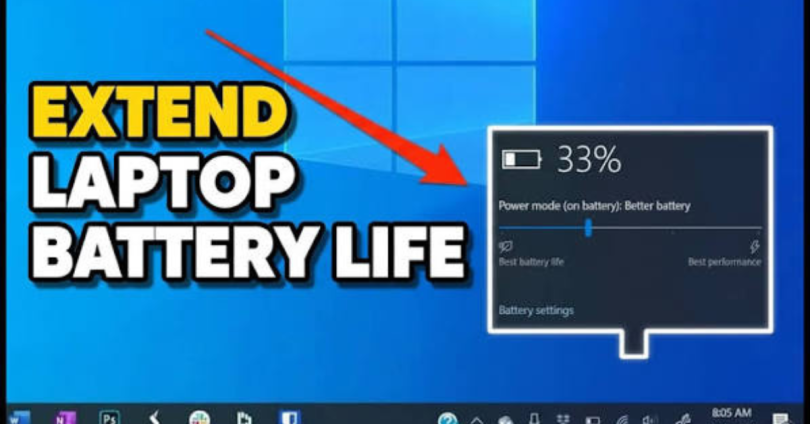
Battery Saver is a useful feature that helps your laptop conserve power when you are away from a charger. It reduces certain background activities and notifications to help extend battery life. If your laptop battery drains quickly, enabling Battery Saver can help you get more usage time from each charge.
Windows may also reduce some visual effects or background synchronization when power-saving features are enabled. The exact behavior depends on your Windows version and device settings.
How to Turn On Battery Saver in Windows 11
Follow these steps to enable Battery Saver on your Windows 11 laptop:
- Click the Start button and open Settings.
- Select System from the left-hand menu.
- Click Power & battery.
- Find the Battery Saver section.
- Click Turn on now if the option is available.
- If you prefer automatic activation, choose a battery percentage for Battery Saver to turn on automatically.
You can also open Quick Settings by clicking the battery, network, or volume icons on the taskbar. If your laptop supports it, select Battery Saver from the available controls.
Keep in mind that Windows 11 may use the name Energy Saver on some versions or devices. The available controls can vary depending on your Windows build and laptop manufacturer.
When Should You Use Battery Saver?
Battery Saver is especially helpful when you need your laptop to last longer without charging. You can enable it whenever your battery level becomes low or when you know you will be away from a power outlet for an extended period.
Consider using Battery Saver in these situations:
- During travel: Save power while working on a train, bus, or plane.
- At school or university: Extend battery life during classes, lectures, or study sessions.
- While working outdoors: Reduce power consumption when charging options are limited.
- During everyday browsing: Conserve energy when reading documents, checking emails, or performing simple tasks.
- When the battery is running low: Activate it before your laptop reaches a critically low charge level.
Battery Saver may limit background activity and affect some notifications or synchronization. If you are running demanding software, playing games, or editing videos, you may notice reduced performance on some devices.
For the best results, enable Battery Saver when you need extra runtime and combine it with lower screen brightness, fewer background applications, and appropriate power settings.
Lower Your Screen Refresh Rate
A laptop’s screen refresh rate determines how many times per second the display updates its image. It is measured in hertz (Hz). For example, a 60Hz display refreshes 60 times per second, while a 120Hz display refreshes 120 times per second.
A higher refresh rate can make scrolling, animations, and gaming look smoother, but it may also consume more power on some laptops. If you want to improve battery life, lowering your screen refresh rate can be a useful option, provided your laptop supports multiple refresh rates.
How to Change the Refresh Rate
If you are using Windows 11, follow these steps to adjust your laptop’s screen refresh rate:
- Open the Start menu and select Settings.
- Click System and choose Display.
- Scroll down and select Advanced display.
- Find the Choose a refresh rate option.
- Select a lower supported refresh rate, such as 60Hz, if available.
Your screen may briefly change while the new setting is applied. If your laptop offers a Dynamic Refresh Rate option, you may also be able to use it to adjust the refresh rate automatically based on your activity.
The available settings depend on your display, graphics hardware, and drivers. If you do not see a refresh-rate option, your screen may support only one fixed rate.
Does a Lower Refresh Rate Improve Battery Life?
Yes, lowering the refresh rate can improve battery life on some laptops, particularly those with high-refresh-rate displays. However, the amount of power saved varies by device and display technology.
Here are some potential benefits:
- Reduced display power consumption: A lower refresh rate may reduce the energy required to update the screen.
- Longer battery runtime: You may get more time between charges, especially during everyday tasks.
- Less unnecessary power use: A 60Hz setting may be sufficient for browsing, reading, writing, and office work.
- A practical setting for travel: Lower refresh rates can help conserve power when you do not have access to a charger.
Keep in mind that changing the refresh rate is only one way to save battery power. Screen brightness, processor workload, graphics usage, and background applications can also have a significant effect.
For everyday work, try 60Hz if your laptop supports it. If you prefer smoother scrolling or play games, you can switch back to a higher refresh rate when needed.
Close Unnecessary Background Apps
Running too many applications in the background can reduce your laptop’s battery life. Some programs continue using the processor, memory, internet connection, or other system resources even when you are not actively using them. This extra activity can increase power consumption and make your battery drain faster.
Closing unnecessary applications and limiting background activity can help your laptop conserve energy. However, avoid closing essential Windows processes or security software, as they may be required for your system to work properly.
How to Check Running Apps in Task Manager
Windows Task Manager helps you identify which applications and processes are using your laptop’s resources. You can use it to find programs that consume significant processing power.
Follow these steps:
- Press Ctrl + Shift + Esc to open Task Manager.
- Select the Processes tab.
- Review the list of running apps and background processes.
- Check the CPU and Power usage columns, if available, to identify applications consuming more resources.
- Select an unnecessary application that you recognize.
- Click End task to close it.
Be careful when ending tasks. Save your work first, and do not stop unfamiliar Windows processes or essential system services.
You can also prevent certain apps from launching automatically. In Task Manager, open Startup apps, select programs you do not need at startup, and choose Disable. This can reduce unnecessary activity when you turn on your laptop.
How Background Processes Affect Battery Life
Background processes can consume battery power even when you are not directly interacting with an application. For example, cloud storage services may synchronize files, messaging apps may check for new messages, and browsers may continue running extensions or background tasks.
These activities can keep your processor and network active, increasing power consumption. Some apps use very little energy in the background, while others can consume considerably more depending on their activity.
Here are some ways to reduce unnecessary background power usage:
- Close unused applications: Exit programs you no longer need instead of leaving them running.
- Limit startup programs: Disable unnecessary apps that automatically launch when Windows starts.
- Pause intensive downloads: Large downloads and file synchronization can consume additional power.
- Reduce browser tabs and extensions: Some tabs and extensions continue performing tasks in the background.
- Review background permissions: Where Windows or the app provides these controls, limit unnecessary background activity.
You do not need to close every application to save battery. Focus on programs that are consuming significant resources or performing tasks you do not currently need. Combining this habit with Battery Saver and lower screen brightness can help extend your laptop’s battery life.
Turn Off Wi-Fi and Bluetooth When Not Needed
Wi-Fi and Bluetooth allow your laptop to connect to the internet and nearby devices, but keeping wireless connections active when you do not need them may use additional battery power. Although their energy consumption is usually modest, turning off unused wireless features can help reduce unnecessary power usage.
For example, if you are working on an offline document or reading a file saved on your laptop, you may not need an active internet connection. Disabling unused wireless connections can be a simple addition to your battery-saving routine.
How to Disable Unused Wireless Connections
Windows 11 makes it easy to turn off Wi-Fi and Bluetooth through Quick Settings.
To turn off Wi-Fi:
- Click the network, volume, or battery icons on the taskbar to open Quick Settings.
- Find the Wi-Fi button.
- Click it to turn Wi-Fi off.
- Turn it back on whenever you need an internet connection.
To turn off Bluetooth:
- Open Quick Settings from the taskbar.
- Find the Bluetooth button.
- Click it to disable Bluetooth.
- Enable it again when you need to connect wireless headphones, a mouse, a keyboard, or another device.
You can also manage these settings through Settings → Network & internet for Wi-Fi and Settings → Bluetooth & devices for Bluetooth.
Keep in mind that turning off Wi-Fi will disconnect your laptop from wireless internet, while turning off Bluetooth will disconnect connected Bluetooth accessories. If you are using a wireless mouse or keyboard, make sure you have another way to control your laptop before disabling Bluetooth.
When to Use Airplane Mode
Airplane mode disables wireless communications, helping you quickly turn off connections when you do not need them. On many Windows laptops, it disables Wi-Fi and Bluetooth initially, although the exact behavior can vary by device and settings.
To enable Airplane mode in Windows 11:
- Click the Quick Settings area on the taskbar.
- Find the Airplane mode button.
- Click it to turn Airplane mode on.
- Turn it off when you need to reconnect to wireless networks.
Airplane mode is useful in several situations:
- Working offline: Use it when editing documents or viewing files stored on your laptop.
- Traveling: It can help you quickly disable wireless connections when required.
- Saving a little extra power: It reduces unnecessary wireless activity when you do not need connectivity.
- Troubleshooting connections: Turning wireless connections off and on can sometimes help resolve minor connectivity issues.
Airplane mode is not always necessary for good battery life. If you need Wi-Fi but do not use Bluetooth, simply disable Bluetooth instead. Likewise, if you need Bluetooth accessories but do not need internet access, you can turn off Wi-Fi alone.
For the best results, disable only the wireless features you are not using and combine this step with other power-saving settings.
Use the Recommended Power Mode
Windows provides power settings that help you balance battery life and laptop performance. Choosing an energy-efficient power mode can reduce unnecessary power consumption, especially when you are browsing the internet, writing documents, or completing everyday tasks.
If your laptop battery drains quickly, switching to a more efficient power mode is a simple way to improve battery runtime without installing additional software.
How to Enable Best Power Efficiency
Windows 11 includes a power mode that prioritizes energy efficiency. Follow these steps to enable it:
- Click the Start menu and open Settings.
- Select System.
- Click Power & battery.
- Find the Power mode section.
- Open the available options and select Best power efficiency.
This setting helps Windows prioritize lower power consumption over maximum performance. Depending on your laptop, it may reduce performance slightly during demanding tasks.
If you cannot find the Power mode option, check your laptop manufacturer’s power-management software or Windows power settings. Available options can vary by device, power source, and Windows version.
Best Power Settings for Everyday Work
The best power settings depend on how you use your laptop. For everyday activities, such as web browsing, reading, writing, and online research, an energy-efficient configuration is usually a good choice.
Consider these recommendations:
- Choose Best power efficiency: Use this mode when battery life matters more than maximum performance.
- Enable Battery Saver or Energy Saver: Turn it on when your battery is running low or you need additional runtime.
- Set the screen to turn off sooner: In Power & battery settings, adjust the screen and sleep timeouts to reduce power use when the laptop is inactive.
- Reduce screen brightness: Use a comfortable brightness level rather than keeping the display at maximum brightness.
- Use balanced performance when needed: If you are editing videos, running demanding software, or multitasking heavily, a balanced power mode may provide a better experience.
For most everyday tasks, Best power efficiency combined with lower screen brightness and shorter screen-off times can help your laptop last longer between charges.
Keep in mind that power settings cannot restore a battery that has significantly degraded. If your laptop still loses charge unusually quickly, check its battery health and investigate whether any applications are consuming excessive power.
You may also like to read these posts:
Best Toilet Repair Kit: Top Choices for Easy and Reliable Toilet Repairs
Best Toilet Repair Kit: Top Picks for Easy and Reliable Toilet Repairs
Best Drain Snake for Home: Top Picks for Easy and Effective Clog Removal
Reduce Keyboard Backlight Brightness
A keyboard backlight makes it easier to type in dim environments, but it can also consume additional battery power. Although its impact is usually smaller than that of the display or processor, reducing keyboard lighting is another simple way to help your laptop battery last longer.
If you often work in a well-lit room, you may not need the keyboard backlight at its highest brightness. Lowering it or turning it off when it is unnecessary can help reduce power consumption.
How to Adjust Keyboard Lighting
The steps for adjusting keyboard lighting depend on your laptop brand and model. Many laptops provide dedicated keyboard shortcuts, while others include lighting controls in their manufacturer’s software.
Try these methods to adjust the keyboard backlight:
- Check the function keys: Look for a key with a keyboard-light or illuminated-keyboard symbol.
- Use the keyboard shortcut: Press the relevant function key or combine it with the Fn key, depending on your laptop.
- Adjust the brightness: If your laptop supports multiple brightness levels, press the shortcut repeatedly to cycle through them.
- Check manufacturer software: Some laptops offer keyboard lighting controls in their built-in control applications or system settings.
On certain models, the shortcut may turn the backlight on or off rather than provide adjustable brightness. If you cannot find a lighting control, consult your laptop manufacturer’s official support guide.
When to Turn Off the Keyboard Backlight
Turning off the keyboard backlight is useful when you can type comfortably without it. This is especially helpful when you are working in a bright room or using your laptop for long periods away from a charger.
Consider disabling the backlight in these situations:
- During daytime use: Natural light or room lighting may make the keyboard easy to see.
- While working near a power outlet-free area: Turn off unnecessary lighting when you need to conserve battery power.
- During long study or work sessions: Small power savings can contribute to longer battery runtime.
- When the backlight is set to maximum brightness: Reduce the brightness to a lower, comfortable level if you still need illumination.
The amount of battery power saved depends on your laptop’s keyboard design and lighting system. Turning off the backlight alone may not make a dramatic difference, but combining it with lower screen brightness, Battery Saver, and efficient power settings can help extend battery life.
Disable Unnecessary Startup Programs
Many applications automatically start when you turn on your laptop. Although some startup programs are useful, others may run in the background without providing any immediate benefit. These programs can consume memory, processor resources, and battery power.
Disabling unnecessary startup applications can help your laptop start faster and reduce background activity. It is a simple way to improve overall performance and potentially extend battery life.
How to Manage Startup Apps
Windows 11 allows you to manage startup applications through Task Manager or Settings. Follow these steps to disable programs you do not need when your laptop starts.
Method 1: Using Task Manager
- Press Ctrl + Shift + Esc to open Task Manager.
- Select Startup apps from the left-hand menu.
- Review the list of applications that launch when Windows starts.
- Check the Startup impact column to identify programs that may slow down startup.
- Right-click an unnecessary application.
- Select Disable.
Method 2: Using Windows Settings
- Open Settings from the Start menu.
- Select Apps.
- Click Startup.
- Review the available applications.
- Turn off the apps you do not need to launch automatically.
Disabling a startup app does not uninstall it. You can still open the application manually whenever you need it.
Which Startup Apps Should You Disable?
The best startup settings depend on which applications you use regularly. You should disable programs that are unnecessary at startup while keeping essential security and hardware-related utilities enabled.
You may consider disabling:
- Music and entertainment apps: Applications that you do not need immediately after signing in.
- Gaming launchers: Game platforms that do not need to start automatically.
- Unused communication apps: Messaging or meeting applications that you rarely use.
- Optional update assistants: Nonessential utilities that do not need to run continuously.
- Unnecessary productivity apps: Programs that you can easily open manually when required.
However, avoid disabling antivirus protection, essential touchpad or graphics utilities, audio services, or other components required for your laptop to work correctly. If you do not recognize a program, research its purpose before changing its startup setting.
Reducing unnecessary startup activity can improve startup time and reduce background resource usage. For the best results, combine this step with Battery Saver, lower screen brightness, and efficient power settings to help your laptop battery last longer.
FAQS:
How Can I Make My Laptop Battery Last Longer?
You can make your laptop battery last longer by reducing screen brightness, enabling Battery Saver, closing unnecessary apps, turning off unused Bluetooth, and using an energy-efficient power mode.
Is It Better to Keep a Laptop Plugged In All the Time?
Modern laptops can generally remain plugged in because they manage charging automatically. However, heat and staying at a very high charge level for long periods may contribute to battery aging. Use a battery charge limit if your laptop supports it
Does Battery Saver Mode Really Work?
Yes, Battery Saver mode can reduce power consumption by limiting certain background activities and adjusting system settings. The improvement in battery life depends on your laptop and how you use it.
Why Does My Laptop Battery Drain So Fast?
Your laptop battery may drain quickly because of high screen brightness, demanding applications, background processes, overheating, or an aging battery. Check your power settings and battery health to identify the cause.
How Do I Check Laptop Battery Health in Windows?
Open Command Prompt and type powercfg /batteryreport, then press Enter. Open the report at the file location displayed to compare the battery’s original design capacity with its current full charge capacity.
Conclusion
Learning how to extend laptop battery life can help you work, study, and browse for longer without constantly charging your device. Simple steps such as reducing screen brightness, enabling Battery Saver, closing unnecessary apps, and adjusting sleep settings can help reduce battery consumption.
For the best results, keep your laptop cool, use efficient power settings, and check your battery health regularly. By following these easy tips, you can make your laptop battery last longer between charges and help maintain its performance over time.