
Introduction
A slow Windows 11 laptop can make everyday tasks frustrating, whether you are studying, working, browsing the internet, or watching videos. Many laptops become slow over time because of too many background applications, limited RAM, insufficient storage space, outdated drivers, or unnecessary startup programs. Sometimes, malware or an aging hard drive can also affect performance.
When a laptop runs slowly, simple tasks such as opening applications, switching between browser tabs, attending online classes, and working on documents can take longer than expected. This can reduce productivity, waste valuable time, and make daily activities more difficult.
Fortunately, you do not always need to buy a new laptop to improve its speed. Simple software solutions, such as disabling unnecessary startup applications, removing temporary files, updating Windows, and scanning for malware, can help improve performance. Hardware upgrades, such as increasing RAM or replacing an HDD with an SSD, can also make a significant difference when compatible with your laptop.
In this guide, you will learn how to identify the common causes of a slow Windows 11 laptop and discover practical ways to make it faster. We will cover easy software adjustments, storage management, background process control, and useful hardware upgrades to help your laptop run more smoothly.
Why Is Your Windows 11 Laptop Running Slowly?
A slow Windows 11 laptop can make everyday tasks frustrating. You may notice that your laptop takes too long to start, applications freeze, or web pages load slowly. These problems can affect your productivity, especially when you are studying, working online, or completing important tasks.
There are several reasons why a Windows 11 laptop may become slow over time. Understanding the cause can help you choose the right solution and improve your laptop’s performance without spending money unnecessarily.
Too Many Startup Programs
Startup programs are applications that automatically open when you turn on your laptop. Some programs are useful, but having too many launch at startup can increase boot time and consume system resources.
For example, messaging applications, cloud storage tools, and other software may run automatically in the background.
To improve startup speed, open Task Manager by pressing Ctrl + Shift + Esc. Select Startup apps and disable unnecessary programs. Avoid disabling security software or applications you need to run automatically.
Insufficient RAM and System Resources
RAM (Random Access Memory) helps your laptop run applications and manage multiple tasks simultaneously. When your laptop has insufficient RAM, it may become slow, especially when you open several browser tabs or use demanding software.
For example, a laptop with 4GB of RAM may struggle with multitasking, while 8GB or more can provide a smoother experience for many everyday tasks.
Close unused applications and browser tabs to free up memory. If your laptop supports a RAM upgrade, adding more memory may significantly improve performance.
Low Disk Space on the C Drive
The C drive usually contains Windows system files, installed applications, and temporary files. When this drive becomes nearly full, Windows may have less room for temporary files and system operations.
Low disk space can also prevent updates from installing correctly.
To free up space, open Settings > System > Storage. Review temporary files, remove unnecessary downloads, and uninstall applications you no longer use. Always check files before deleting them to avoid losing important data.
Too Many Background Applications
Some applications continue running even when you are not actively using them. These background processes can consume RAM, CPU power, and battery life.
For instance, cloud synchronization tools, game launchers, and multiple browser processes may use system resources in the background.
Open Task Manager and check the Processes tab to identify applications using high CPU, memory, or disk resources. Close applications you recognize and do not need, but avoid ending unfamiliar Windows system processes.
Outdated Windows Updates and Drivers
Outdated Windows software or device drivers can sometimes cause performance problems, compatibility issues, and system errors. Graphics, network, and storage drivers are particularly important for reliable operation.
To check for updates, open Settings > Windows Update and select Check for updates. You can also check your laptop manufacturer’s official website for compatible drivers.
Install updates from trusted sources and restart your laptop when required. Updates do not always make a computer faster, but they can resolve certain performance issues.
Malware and Unwanted Software
Malware and unwanted applications can run secretly in the background, consume system resources, display unwanted advertisements, or interfere with normal laptop operation.
If your laptop suddenly becomes slow, displays unusual pop-ups, or opens unfamiliar applications, unwanted software could be one possible cause.
Run a security scan using Windows Security. Open Windows Security > Virus & threat protection > Quick scan. If you suspect a serious infection, consider running a more thorough scan and removing suspicious applications.
Avoid downloading cracked software or opening suspicious email attachments, as these can expose your laptop to security threats.
Overheating and Poor Ventilation
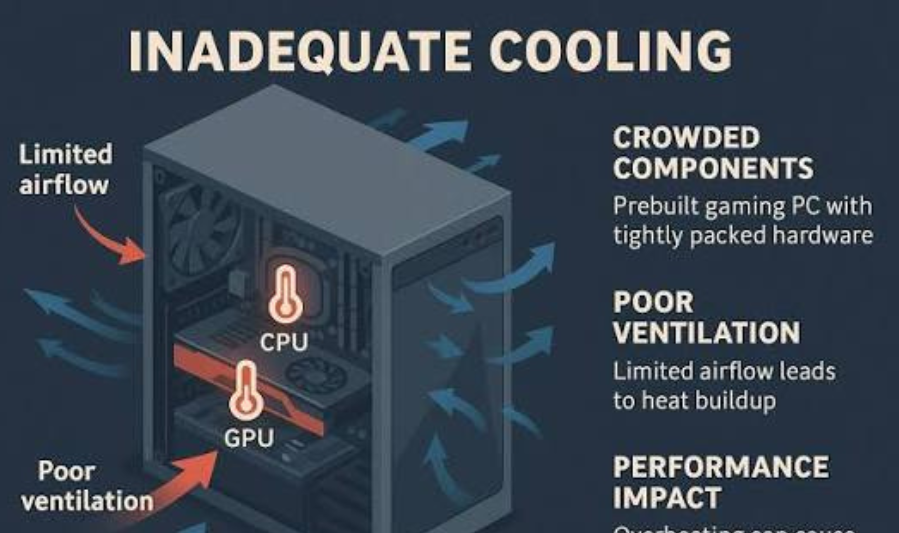
Overheating is another common reason for slow laptop performance. When the processor becomes too hot, Windows may reduce its speed to protect the hardware. This process is called thermal throttling.
Dust inside the cooling system, blocked air vents, and using a laptop on a bed or pillow can contribute to overheating.
Place your laptop on a hard, flat surface and keep its air vents clear. If the laptop becomes unusually hot or its fan runs constantly, it may need professional cleaning or cooling-system maintenance.
Old Hard Drive or Aging Hardware
Older hardware can limit the performance of a Windows 11 laptop. Traditional hard disk drives (HDDs) are generally slower than solid-state drives (SSDs), particularly when starting Windows, opening applications, and loading files.
Upgrading from an HDD to an SSD can make a noticeable difference in everyday responsiveness. Increasing RAM may also help if memory is a bottleneck.
However, upgrades depend on your laptop’s specifications and compatibility. Before buying new hardware, check whether your laptop supports an SSD or additional RAM and back up important files before making changes.
Understanding these common causes is the first step toward improving your laptop’s speed. In the next section, we can explain how to speed up a Windows 11 laptop step by step, starting with simple software fixes and moving on to hardware upgrades when necessary.
Disable Unnecessary Startup Programs
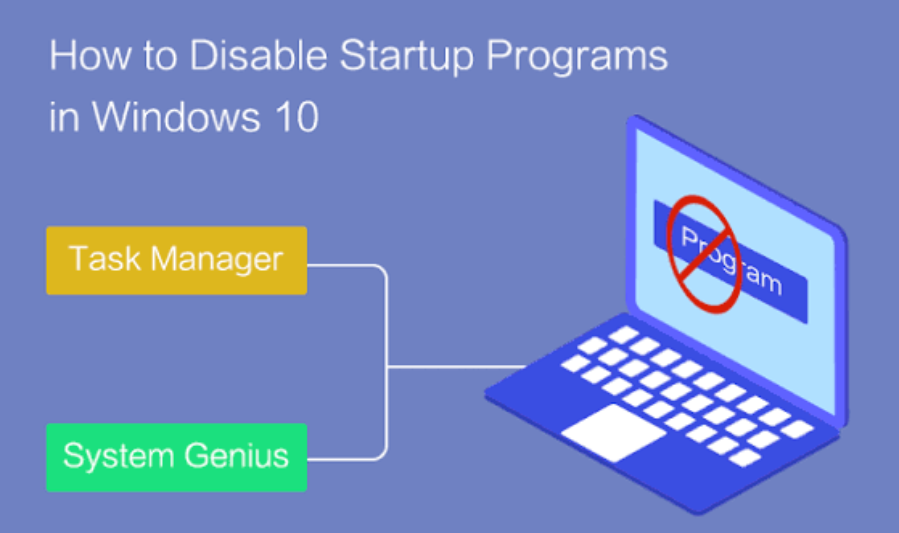
Startup programs are applications that automatically open when you turn on your Windows 11 laptop. Too many startup applications can increase boot time and consume RAM and CPU resources, making your laptop slower. Disabling unnecessary programs can help Windows start faster and improve overall performance.
How Startup Applications Affect Boot Time
When you start your laptop, Windows loads essential system files along with applications configured to launch automatically. If many programs start simultaneously, they compete for system resources and can make your laptop take longer to become ready. For example, messaging apps, game launchers, and music applications may run in the background even when you do not need them.
How to Disable Startup Programs Using Task Manager
You can disable unnecessary startup applications using Windows 11 Task Manager. Press Ctrl + Shift + Esc to open Task Manager, then select Startup apps from the left-hand menu. Review the listed applications and their startup impact. Right-click an unnecessary application and select Disable. Finally, restart your laptop to check whether startup performance improves.
Which Programs Should You Avoid Disabling?
Although disabling unnecessary applications can improve performance, some programs provide important functions. Avoid disabling antivirus and security software, essential touchpad or keyboard utilities, and hardware-related services unless you understand their purpose. Keep cloud synchronization applications enabled if you need files to sync automatically. You can usually disable optional launchers, messaging apps, and other programs that you do not need immediately after signing in.
Delete Temporary Files and Unnecessary Data
Temporary files are created by Windows and applications to store information needed for short-term tasks. Over time, these files can take up valuable storage space and leave less room for updates and other important operations. Removing unnecessary temporary files can help free up disk space and keep your Windows 11 laptop running smoothly.
What Are Temporary Files?
Temporary files are files created during software installation, browsing, updates, and everyday computer activities. Examples include temporary internet files, application cache files, Windows update cleanup files, and files left behind by certain processes. Some temporary files are automatically removed, while others remain on your laptop until you delete them manually. Removing unnecessary files can free up storage space, particularly when your C drive is nearly full.
How to Remove Temporary Files Through Windows Settings
Windows 11 includes a built-in storage management feature that allows you to review and delete temporary files without installing additional software.
- Open Settings by pressing
Windows + I. - Select System and then click Storage.
- Wait for Windows to calculate your storage usage.
- Click Temporary files to view the categories of files that can be removed.
- Select the categories you want to delete.
- Click Remove files and confirm your selection if prompted.
Windows will remove the selected files and free up storage space. Depending on the amount of data, this process may take a few moments.
How to Review Files Before Deleting Them
Before removing temporary files, review each category carefully to avoid deleting data you still need. For example, the Downloads folder may contain important documents, photographs, or other personal files. Selecting it for cleanup could permanently remove those files.
You should also be careful when deleting Recycle Bin contents because you may lose the opportunity to restore files easily. If you use temporary files for ongoing work or need cached data for a particular application, consider keeping them.
For safer cleanup, select only categories you recognize and no longer need. If you are unsure about a file or folder, leave it untouched until you confirm its purpose.
Regularly reviewing and deleting unnecessary temporary files can help maintain sufficient storage space, support Windows updates, and improve performance when your laptop’s drive is running low on space.
Uninstall Unused Applications
Unused applications can take up valuable storage space on your Windows 11 laptop. Some programs may also run background processes, use RAM, or install services that consume system resources. Removing software you no longer need can free up disk space and help your laptop run more efficiently.
How Unnecessary Software Consumes Storage and Resources
Applications require storage space for their program files, updates, and related data. Some also run automatically in the background, using memory and CPU resources even when you are not actively using them. For example, old games, duplicate utilities, and software you installed for a one-time task may no longer be necessary. Uninstalling these applications can free up space and reduce unnecessary background activity.
How to Uninstall Applications Safely
Windows 11 provides a simple way to remove unwanted applications. Follow these steps:
- Press
Windows + Ito open Settings. - Select Apps and then click Installed apps.
- Review the list of installed applications.
- Find a program you no longer use and click the three-dot menu beside it.
- Select Uninstall and follow the on-screen instructions.
- Restart your laptop if the uninstaller requests it.
Before uninstalling an application, make sure you do not need its files, settings, or saved data. Back up important information first, especially if the program contains documents or project files.
Why Unfamiliar System Applications Should Not Be Removed
Not every unfamiliar application is unnecessary. Some programs and components support Windows, hardware drivers, security features, or other applications. Removing them without understanding their purpose may cause errors, disable important features, or create compatibility problems.
Avoid uninstalling essential Microsoft components, device drivers, security software, and applications whose purpose you do not understand. If you are unsure about a program, search for its name on the laptop manufacturer’s official website or Microsoft’s support website before removing it.
Tip: Focus on applications you recognize and no longer use. Regularly reviewing installed software is a safer way to free up storage space and maintain your Windows 11 laptop’s performance.
Disable Unnecessary Visual Effects
Windows 11 includes visual effects such as animations, transparency, shadows, and fading transitions to make the interface look modern. However, these effects can use additional system resources, particularly on older laptops with limited RAM or weaker graphics hardware. Disabling some visual effects may make your laptop feel more responsive.
How Animations and Transparency Affect Performance
Animations create smooth transitions when opening windows, minimizing applications, or navigating menus. Transparency effects make elements such as the Start menu and taskbar appear partially see-through. Although these features improve the visual experience, they can add extra work for the graphics system.
On laptops with older hardware, reducing these effects may help menus and windows respond more quickly. The improvement may be small on newer laptops, especially those with sufficient RAM and modern graphics hardware.
How to Adjust Windows Performance Settings
You can reduce visual effects in Windows 11 by following these steps:
- Press
Windows + Ito open Settings. - Select Accessibility and then click Visual effects.
- Turn off Animation effects to reduce interface animations.
- Turn off Transparency effects to remove transparent backgrounds.
- If your laptop is still slow, press
Windows + R, typesysdm.cpl, and press Enter. - Open the Advanced tab and select Settings under Performance.
- Choose Adjust for best performance to disable many visual effects, or select Custom to turn off only the effects you do not need.
- Click Apply and then OK to save your changes.
The best option depends on your laptop’s hardware and personal preferences. You can restore individual effects whenever you want.
Difference Between Appearance and Responsiveness
Appearance refers to how Windows looks, including animations, transparency, shadows, and other visual details. Responsiveness refers to how quickly your laptop reacts when you open applications, switch between windows, or interact with menus.
Disabling visual effects may make Windows look simpler, but it can improve perceived responsiveness on less powerful laptops. However, these changes will not necessarily solve problems caused by insufficient RAM, a nearly full drive, overheating, or outdated hardware.
For the best balance, disable animations and transparency first. If your laptop remains slow, consider adjusting additional performance settings and investigating other possible causes.
Update Windows 11
Keeping Windows 11 up to date is important for maintaining your laptop’s security, stability, and performance. Updates may fix system bugs, improve compatibility, and resolve problems that cause applications to freeze or Windows to run slowly. Installing updates can help your laptop work more reliably, although not every update will make it faster.
Importance of Windows Updates
Windows updates provide security improvements, bug fixes, and compatibility enhancements. They can address known issues with system processes, drivers, and applications that may affect laptop performance. Updates also help protect your computer against security vulnerabilities.
Regular updates can reduce unexpected errors and improve system stability. However, your laptop may temporarily run slowly while Windows downloads or installs updates in the background. Performance usually improves after installation and a restart, once background tasks finish.
How to Check for Windows Updates
Follow these steps to check for available updates on your Windows 11 laptop:
- Press
Windows + Ito open Settings. - Select Windows Update from the left-hand menu.
- Click Check for updates.
- If updates are available, allow Windows to download and install them.
- Restart your laptop if prompted to complete the installation.
- Return to Windows Update to check whether additional updates are available.
Keep your laptop connected to a reliable power source during major updates, and save your work before restarting. You can also check the manufacturer’s official website for compatible driver updates if you suspect a hardware-related issue.
What to Do If an Update Causes Performance Issues
Sometimes, a Windows update may introduce compatibility problems, driver conflicts, or temporary performance issues. If your laptop becomes noticeably slower after an update, try these steps:
- Restart your laptop: This can resolve temporary problems after installation.
- Wait for background tasks to finish: Windows may need time to complete indexing, optimization, or other maintenance tasks.
- Check Task Manager: Press
Ctrl + Shift + Escto identify applications or processes using unusually high CPU, memory, or disk resources. - Update compatible drivers: Check Windows Update or your laptop manufacturer’s official support website for updated drivers.
- Uninstall a problematic update if necessary: Open Settings > Windows Update > Update history > Uninstall updates and review whether a recently installed update is responsible. Not all updates can be removed.
Before uninstalling an update, make sure you have backed up important files. Avoid removing security updates unnecessarily; first try restarting your laptop and checking for known issues or corrective updates.
Regularly updating Windows 11 helps maintain a secure and reliable laptop. If performance problems continue after updating, investigate other causes, such as low storage space, unnecessary startup programs, insufficient RAM, or overheating.
Close Unnecessary Background Applications
Background applications are programs that continue running even when you are not actively using them. These applications can consume CPU power, RAM, and other system resources, making your Windows 11 laptop slower. Closing unnecessary applications can free up resources and improve performance, especially when you are multitasking or using demanding software.
How CPU and Memory Usage Affect Performance
The CPU (Central Processing Unit) handles instructions and performs calculations, while RAM (Random Access Memory) temporarily stores the data that running applications need. When too many applications run simultaneously, they can compete for these resources.
For example, opening multiple browser tabs, video editing software, and messaging applications at the same time may cause your laptop to respond slowly. High CPU usage can make applications lag, while high memory usage may cause Windows to rely more heavily on the storage drive, reducing responsiveness.
How to Identify Resource-Heavy Applications in Task Manager
Windows 11 Task Manager helps you identify applications that use excessive system resources. Follow these steps:
- Press
Ctrl + Shift + Escto open Task Manager. - Select the Processes tab.
- Click the CPU column to identify processes using the most processing power.
- Click the Memory column to see which applications consume the most RAM.
- Check the Disk column if your laptop seems slow when opening files or applications.
- Review the results and identify applications you recognize but do not currently need.
Applications with high resource usage are not necessarily faulty. A program may temporarily use more resources while performing tasks such as installing updates, processing videos, or loading large files.
You may also like to read these posts:
Best Toilet Repair Kit: Top Choices for Easy and Reliable Toilet Repairs
Best Toilet Repair Kit: Top Picks for Easy and Reliable Toilet Repairs
Best Drain Snake for Home: Top Picks for Easy and Effective Clog Removal
How to Close Applications Safely
Once you identify an unnecessary application, you can close it to free up system resources.
- Save your work in the application you want to close.
- Open Task Manager using
Ctrl + Shift + Esc. - Select the application under the Processes tab.
- Click End task to close it.
- Repeat the process only for other applications you recognize and do not need.
- Check whether your laptop responds more quickly.
Whenever possible, close applications normally using their own Exit or Close option before using Task Manager. Avoid ending unfamiliar Windows processes, essential security services, or system tasks because doing so may cause errors or interrupt important operations.
Closing unnecessary background applications can help your Windows 11 laptop run more smoothly. For the best results, keep only the programs you need open and check Task Manager when your laptop becomes unusually slow.
FAQS:
Why Is My Windows 11 Laptop So Slow?
A Windows 11 laptop may run slowly because of too many startup programs, insufficient RAM, low storage space, outdated drivers, or background applications. Identifying the main cause can help you choose the right solution.
How Can I Speed Up My Windows 11 Laptop for Free?
You can improve laptop performance for free by disabling unnecessary startup programs, deleting temporary files, uninstalling unused applications, closing background apps, and keeping Windows updated.
Does Adding More RAM Make a Laptop Faster?
Yes, adding RAM can improve performance when your laptop runs out of available memory, especially when multitasking. However, the improvement depends on your laptop’s hardware and the cause of the slowdown.
Does an SSD Make a Windows 11 Laptop Faster?
Yes, replacing a traditional hard disk drive (HDD) with a compatible solid-state drive (SSD) can significantly improve startup times, application loading, and overall responsiveness.
How Can I Make My Old Windows 11 Laptop Run Faster?
To improve an older laptop, remove unnecessary applications, free up storage space, disable unwanted startup programs, check for overheating, and consider upgrading the RAM or replacing an HDD with an SSD if compatible.
Conclusion
Learning how to speed up a Windows 11 laptop can help you improve its performance without spending money on expensive upgrades. Simple steps such as disabling unnecessary startup programs, removing temporary files, closing background applications, updating Windows, and freeing up storage space can make your laptop more responsive.
If your laptop remains slow after trying these solutions, check its RAM, storage drive, and cooling system to identify possible hardware problems. Upgrading to an SSD or adding more RAM, when supported, can provide a noticeable improvement.
For the best results, maintain your laptop regularly, avoid unnecessary software, and keep your system updated. By following these practical tips, you can enjoy a smoother Windows 11 experience for studying, working, browsing, and everyday tasks.